3.1.1 Symbol Editor commands
Opening the Symbol Editor
There are several ways to open the Symbol Editor:
 | In
a Diagram Editor, select an instance of a type of the symbol you want to edit,
hold down the Shift-key and double-click the property sheet’s row with the
red text of the type
name. |
| In
metatools (Object Tool, Relationship Tool and Role Tool) click the Symbol
Editor button in the toolbar or select Tools | Symbol
Editor. |
| In
the Symbol Editor, select Symbol | Open... and double-click the type or
library symbol from the Symbol Browser dialog. Alternatively, select the symbol
from the Symbol Browser and press the Open button. This will open a new
Symbol Editor for the selected
symbol. |
| In
a Symbol Browser, select the symbol you want to edit and press either Edit or
Open button (depending on the Symbol Browser user interface mode). For more
information about the Symbol Browser, see Section 3.5. |
If
the Symbol Editor is opened for a type that has an existing symbol, the symbol
is automatically loaded into the editor (if there is no existing symbol
definition, the Symbol Editor will initially be
empty).
Creating a new symbol
To clear the editor and start with an empty symbol, select
Symbol | New. Please note that this new symbol is still attached to the
currently selected type.
Saving a symbol
To save the symbol definition, select
Symbol | Save or
press the
Save button in the toolbar. By default, the symbol is saved to
its owner, i.e. either a type or library symbol. To explicitly save a symbol to
the symbol library
or into another
type, select
Symbol | Save Copy To..., select an existing symbol or
create a new library symbol in the Symbol Browser, and press the
Save
button.
Importing a symbol from the
library
To import a symbol from the symbol library into the Symbol
Editor, select
Symbol | Import From Library..., choose the symbol you
want to import in Symbol Browser and press the
Import button. The
individual symbol elements of the imported symbol will be pasted into the Symbol
Editor. It is possible to import symbols regardless of their types but please
note that if the imported type is of a different type than that currently open
in the Symbol Editor, any incompatible elements will be filtered out –
e.g. a role line will not be imported into an object symbol, nor a connectable
into a role symbol. Similarly, type specific property associations within
symbols – like text fields’ connections to properties – will
be cleared if the type does not contain the required property. These
associations can be reattached by editing the individual symbol elements
afterwards.
Bitmap import
To import a bitmap as a symbol element, select
Symbol |
Import Bitmap... and select the bitmap file from the file dialog that opens.
Supported file types are
.bmp,
.gif,
.jpg and
.png. For more information about bitmap
symbol elements, see Section
3.2.8.
SVG export/import
The Symbol Editor provides a mechanism for exporting symbol
elements as Scalable Vector Graphics (SVG) documents and importing these
documents back to MetaEdit+. SVG is an XML notation for describing vector
graphic images. MetaEdit+ supports the SVG Tiny 1.2 profile – for more
information about this format, please refer to
www.w3.org/TR/SVGMobile12.
To export the current symbol's elements to an SVG file,
select
Symbol | Export SVG.... Enter the name for the SVG file when
prompted. To import elements from an SVG document, select
Symbol | Import
SVG... and select the SVG file from the file dialog that opens. If errors
are encountered during the export or import, a warning dialog will be shown
providing information about the possible cause of the
error.
Opening the Icon Editor
To edit the icon for the current symbol select
Symbol |
Icon Editor. For more information about the Icon Editor, please refer to
Section
3.4.
Symbol scale properties
It is possible to define whether or not it is allowed to scale
instances of this symbol in a Diagram Editor. The scalability option can be set
separately for horizontal and vertical scaling in
Symbol | Properties....
Disallowing a scale direction here will disable the respective scaling handles
in the Diagram Editor when the element is selected there. Similarly, scale
related options will be disabled in the element’s Format
dialog.
Exiting the Symbol Editor
To exit the Symbol Editor, select
Symbol | Exit or
close the Symbol Editor window. If there are unsaved changes, a dialog as in
Figure 3–2 will be shown to prompt
whether or not to save them.
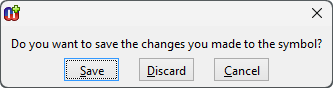
Figure 3–2. Confirmation for save on exit.
Undo/redo
To undo Symbol Editor operations, select either
Edit |
Undo or press the
Undo toolbar button (or press
Ctrl+Z). To
redo, select
Edit | Redo or press
Redo toolbar button (or press
Ctrl+Y).
Using the grid
Using the grid helps you position and scale symbol elements
accurately. When the grid is active, elements are not moved or scaled completely
freely anymore, but with defined steps. To set the grid step, select
View |
Choose Grid... to open the grid size dialog (
Figure 3–3). In the grid size dialog
you can set the grid step values for both axes either by entering them into
their respective number fields or by using the sliders. If you want to make sure
that the grid for both axes is the same, check the
Uniform grid checkbox.
Pressing the
Default button will restore the default grid step
values.
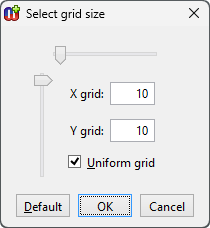
Figure 3–3. Setting grid step.
To make the grid
visible in the drawing area, select
View | Show Grid or toggle it on by
checking the
Show checkbox in the
Grid section of the status bar
on the bottom of the window. To activate the grid, choose
View | Snap to
Grid or check the respective checkbox in the status bar. Once activated, all
further element operations will conform to the grid steps. However, activating
the grid does not force symbol elements to align themselves along it. To do
this, select
Align | Align to Grid or press
Align to Grid button
in the toolbar: this will align the top left of the selected elements (or all
elements if none are selected) to the nearest grid
point.
Scrolling the work area
In addition to the normal scrollbars it is also possible to
reposition the work area with the Scroll Tool. You can activate the tool by
pressing the
Scroll button in the toolbar. Once the tool has been
activated, you can scroll the work area by holding down the left mouse button
and dragging the hand cursor.
Setting zoom
The Symbol Editor is opened with a 200% zoom by default. To
change the zoom, either:
| 1) | Select
View | Zoom... from the menu bar or press the Zoom button in the
toolbar. This will open a Zoom dialog (Figure
3–4). |
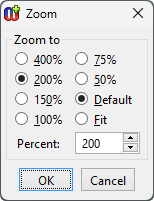
Figure 3–4. Zoom Dialog.
| 2) | In
the Zoom dialog, set the proper zoom value either by selecting from the
predefined values or by entering your own value in the Percent field.
There are also predefined settings for zooming the symbol to fill the whole
drawing area (Fit) and restoring the 200% default zoom
(Default). |
Or:
| 1) | Select
the Zoom Tool from the Symbol Editor
toolbar. |
| 2) | On
the drawing area, press and hold down the left mouse button and drag the
magnifier cursor to define the area you want to zoom to. Or, alternatively,
position the magnifier cursor on top of the element or area you want zoom closer
to and click the left mouse button. This will zoom in one
step. |
 | By
default, the Zoom Tool operates in ‘Zoom in’ mode. You can
change to ‘Zoom out’ mode by pressing and holding down the Ctrl-key
while the Zoom Tool is
active. |
Or one of the
following:
| To
set the default zoom (200%) select Default zoom from the
toolbar. |
| To
zoom to fit select Zoom to Fit from the
toolbar. |
| Select
the zoom percentage from the pull-down list on the right of the status bar.
|
| For
zooming in or out step-by-step, press the round + or –
buttons on the right of the status
bar. |
| Hold
down Alt and use your mouse scroll wheel to zoom in and
out. |
Refreshing window
To refresh the drawing area, either select
View |
Refresh from the menu or press
F5.


