3.5 Symbol Library and Symbol
Browser
While a symbol definition is normally simply saved as part of
the type it belongs to, there is often also a need to reuse symbols or parts of
symbols. In order to enable this, MetaEdit+ provides a Symbol Library where
symbols can be stored. The Symbol Library is saved in the repository, and is
available from all projects in that repository.
Even in the library, each symbol is associated with a
certain metatype – Object, Relationship or Role – and the symbols
shown in the symbol list are therefore grouped by metatype. A library symbol has
almost all the functionality of a normal symbol for that metatype, except that
there is no association to an Icon, and Object library symbols cannot contain
connectables with static ports (they may have templates offering dynamic
ports).
The Symbol Library is managed with the Symbol Browser. The
Symbol Browser can be opened from various places in MetaEdit+ and its features
and behavior depends on the purpose it was opened for.
Figure 3–26 shows the Symbol Browser
when opened by selecting
Metamodel | Symbol Browser from the MetaEdit+
main launcher’s menu bar.
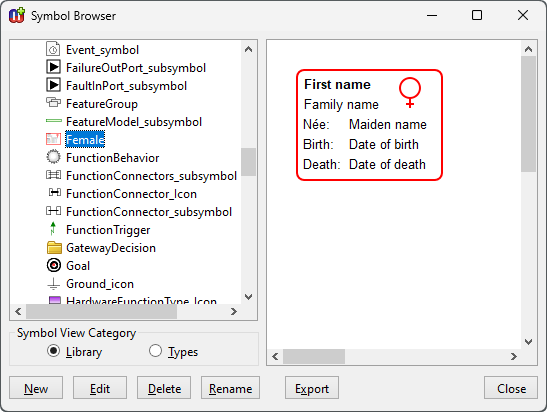
Figure 3–26. Symbol Browser.
When opened from the
main launcher, the Symbol Browser operates in management mode and provides its
most complete set of features. The basic functionality of the browser remains
the same between the operating modes. The list on the left-hand side of the
dialog shows the symbols in the selected view category. There are two view
categories, Library and Types, selected with the respective radio
buttons in the Symbol View Category box. The Library radio button
shows the symbols stored in the Symbol Library and Types shows the
symbols stored in types.
When a symbol is selected from the list, it will be
displayed in the preview pane on the right. Please note that the preview may not
be complete as certain dynamic aspect (e.g. text fields that fetch their content
at runtime) may have been omitted.
In management mode and when the Library category
has been selected, the browser provides the following operations:
 | New:
prompts for a name and symbol type association and creates a new library
symbol. |
| Edit:
opens the Symbol Editor for the selected symbol. Alternatively, double-click the
symbol in the list to open it for
editing. |
| Delete:
removes the selected symbol from the Symbol
Library. |
| Rename:
renames the selected symbol in the Symbol
Library. |
| Export:
exports the symbols into an XML document. Before exporting, MetaEdit+ prompts
for selecting the symbols to be exported and the name for the .mxs file to
import them to. To import symbols to MetaEdit+, use the usual import procedure
that has been described in Section 5.3.1 in the ‘MetaEdit+ User’s
Guide’. |
When viewing the Types
category, only the Edit operation is available, as the symbols attached
to types are managed and exported as part of the type definition.
The Symbol Browser is also used, often with reduced
functionality, as a dialog in a number of other cases:
| Opened
from the Symbol Editor with Symbol | Open.... This mode only allows
opening the selected symbol into a new Symbol Editor. Open the symbol for
editing either by double-clicking it or by choosing it and pressing Open.
It is also possible to create a new library symbol when the Library category is
selected.
|
| Opened
from the Symbol Editor with Symbol | Save Copy To.... Normally the Symbol
Editor saves symbols back to their owner, a type or symbol library, but the
Symbol Browser also provides an option for saving the symbol definition into
another type or library symbol. It is also possible to create a new library
symbol to save to or open a type symbol for editing in this operating
mode. |
| | To
save a copy of the symbol over an existing symbol, either in a type or the
library, simply double-click the symbol in the list or, alternatively, select it
and press Save. If you want to create a new library symbol to save into,
select the Library category and press New. This will open a dialog
where you can enter the name for the symbol to be created (please note that the
selection of Symbol Type in the creation dialog remains inactive because
the symbol is already associated to a certain symbol type). When the new library
symbol appears in the list, finalize the save either by double-clicking it or
selecting it and pressing
Save. |
| Opened
from the Symbol Editor with Symbol | Import From Library.... To import an
existing symbol as part of the current symbol definition, double-click it or
choose it and press Import. This mode also allows opening type symbols
for
editing. |
| Opened
from a template’s Format dialog’s Subsymbol tab by selecting
Selection from library. As only library symbols can appear as subsymbols,
the Types category is inactivated in this mode. To select the symbol,
simply double-click it or choose it and press OK. It is also possible to
create a new library symbol, if needed; the new symbol will be opened in its own
Symbol Editor, but you can only work there after first closing the template
Format
dialog. |


