3.2.4 Object Browser
 | See
also Section 3.2.1 for features common
to all browsers |
The Object Browser
provides a hierarchical view on the design data based on graph, object and
property aggregation structures. It is particularly useful when there are deep
structures of objects embedded as properties in other objects.
To use the Object Browser, either activate the ‘Type
Browser’ page in the Main Launcher, or alternatively open a new instance
of it in its own window by selecting
Browsers | Object Browser.
Figure 3-28 shows an Object Browser
window.

Figure 3-28. Object Browser
The Elements list in the middle
of the Object Browser shows all graphs and objects and their properties that
contain other objects or graphs. The Contents list on the right then shows the
selected element’s properties with their values.
Managing elements
Pop-up menus are available for all element types in the
Element list. For graphs the menu is similar to that in the Graph Browser (see
Figure 3-24 and the description of the
menu there). The pop-up menu for objects has two operations:
Properties... and
Info that bring up the property dialog and Info
Tool for the selected object. For collection properties the menu offers four
operations. Two of those,
Properties... and
Info, actually both
call first the Info Tool for the selected element, from which you can then
proceed by viewing or editing its properties. The
Add... operation
creates and adds a new object to the respective collection property, whereas
Add existing... allows you to add an existing object.
Managing contents
On the Content list, pop-up menus are available only for
non-property values (
Figure 3-29). Use
Properties... and
Info to access the property dialog or Info Tool
for the selected non-property. From this menu it is also possible to add new
(
Add...) or existing objects (
Add existing...) as values or remove
a value (
Remove). Use
Copy to copy the selected object to the
clipboard.
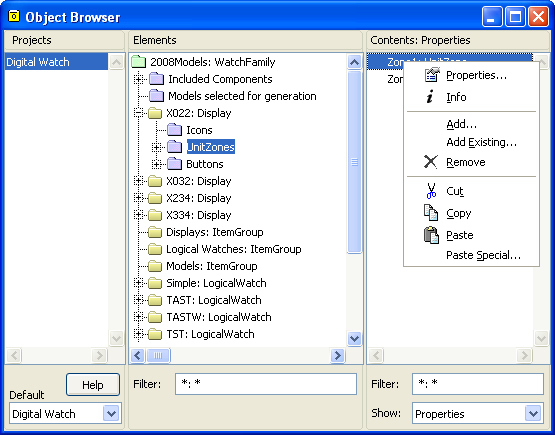
Figure 3-29. Menu for managing non-property values


