3.2.5 Graph Manager
The Graph Manager is a tool for inspecting links between
graphs and graph elements, and for exporting graphs into an external file. To
open the Graph Manager either press the
Export button on the Launcher
toolbar or select
Browsers | Graph Manager.
Figure 3-30 shows a Graph Manager
window.

Figure 3-30. Graph Manager
The Graph Manager has two lists.
The left-hand list shows the graphs of projects that are currently open in the
MetaEdit+ client. By default the graphs are ordered alphabetically, with no
hierarchy. You may change the ordering from the pull-down list above the graphs
list. Graphs can be ordered according to the hierarchy of explosion and/or
decomposition links. The right-hand list shows all currently loaded graphs and
objects.
Both lists have pop-up menus that allow you to edit the
properties of the element (Properties... or Edit Element...), open
it in an editor (Open Graph or Open Element...), and ask
information about the usage of the current design element with Info Tool
(Graph Info or Element Info).
Exporting graphs
Graph Manager allows you to export selected graphs and their
elements, along with the necessary metamodel information, either as binary or
XML format. For detailed information about MetaEdit+ export and import
capabilities, please refer to Section
5.3.
Inspecting element users
Graph Manager allows you to inspect the usage of individual
elements: to see the design elements that refer to the selected element. To
inspect element users:
| 1) | Open
projects containing the elements to be inspected: both the used element and
possible using elements.
|
| 2) | Open Graph
Manager. |
| 3) | Select
graphs from the left-hand list. Normally you should select all graphs (press the
Select All
button). |
| 4) | Press
the arrow button between the lists. This updates the right-hand list by
selecting the elements that are included into the selected graphs. It also
updates the cached list of using elements for each of the elements in the
right-hand
list. |
| 5) | Select
the element to be inspected by clicking it in the right-hand
list. |
| 6) | Choose
Show Element Users... from the pop-up menu attached to the selected
element. |
A list dialog opens showing all
elements that refer to the selected element.
Figure 3-31 shows the element usage
window for WatchApplication ‘TASTW’.
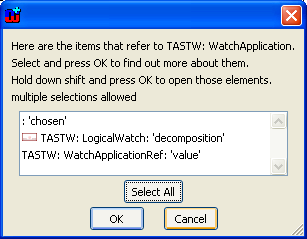
Figure 3-31. Inspecting usage of element ‘TASTW’.
From
the list you can select one or more referring elements to inspect which elements
in turn use them, or open the elements by holding
Shift down while
pressing
OK.


