3.2.1 Common features
All browsers share a similar appearance and some
common
behavior, such as project operations and list
filtering.
Figure 3-20 shows the Graph
Browser as an example of the general browser window layout. In all browsers, the
left-hand list shows all the projects
that are currently
opened in the MetaEdit+ client. Highlighted project names (like ‘Digital
Watch’ in
Figure 3-20) indicate
which of the projects are currently selected for display in this browser. The
middle and right-hand lists in the browser window show either the types or
instances of design elements in the selected projects. Note that selecting a
project only affects what is visible in this browser, and does not actually open
or close any project.
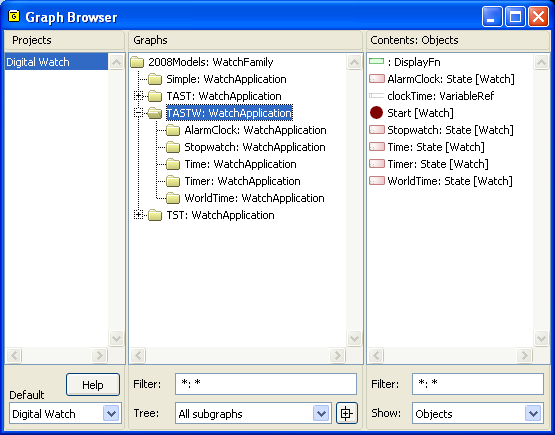
Figure 3-20. An example of a browser window.
Managing projects
Project management operations can be accessed via the project
list’s pop-up menu. To open a project:
| 1) | Open
the project list’s pop-up menu with the right mouse
button. |
| 2) | Choose
Open... from the menu. |
As a result a
dialog opens with a list of possible projects to be opened (
Figure 3-21). The projects available are
those to which you have access rights, and which are not yet open. If a project
has not yet been explicitly opened, but you have already referenced some data
there (often graph types), the project will be marked with an asterisk
‘*’. Opening projects may take a little while, depending on their
size.
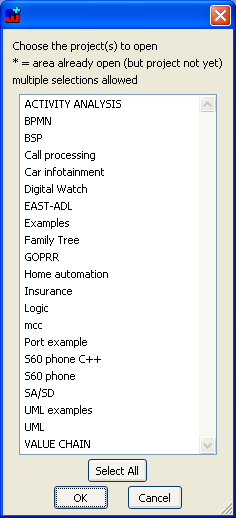
Figure 3-21. A dialog for selecting projects to be opened.
Similarly,
you can close projects by c
hoosing
Close... from
the project list’s pop-up menu and selecting them in the list dialog that
opens. Note that the current selections in the projects list are not related to
which projects will be closed. If you close all projects, you will be prompted
to open another project. If you close the default project, you will be prompted
to choose another project as the default.
You can also create new projects by selecting New...
from the project list’s pop-up menu. Check with your system
administrator about project creation and naming conventions. Note that you must
remember to set the new project as default in order to add graphs and related
design information to it.
It is also possible to rename and delete projects from the
pop-up menu, but this requires system administrator privileges. For more
information about renaming and deleting projects, please refer to the
‘MetaEdit+ System Administrator Guide’.
Default project
The default project field shows in which project new graphs
will be stored. New objects, graph representations and other design elements are
automatically stored into the same project as their graphs.
Only one project can be set as the default (e.g.
‘Digital Watch’ in
Figure
3-20) but multiple projects can be open for example for viewing and reuse
purposes. Thus, the default project
setting is generally
the project that you are actually working on: i.e. in which you add new graphs.
You can set the default project by choosing the project
name from the Default project pull-down list under the project
list.
Filtering views
To help browsing when there are many elements (types or
instances) shown in the middle and right-hand lists, two additional fields at
the bottom of the window can be used to set filters
for
the lists. By typing ‘T*’ in the field below the Graphs list (
Figure 3-20), you can filter the list to
show only instances starting with a capital letter T. Wildcards can be used:
‘*’ to represent any sequence of characters, and ‘#’ to
represent any single character.
In hierarchical views, the parent items of items matching
the filter will also be displayed, to maintain the hierarchy.
Expanding and contracting the hierarchy
You can expand branches individually in the middle
list’s hierarchy tree view by clicking their + icon, or expand the whole
tree by pressing the
Expand button (
Figure 3-22) that is located next to the
Tree pull-down list.

Figure 3-22. Expand button.
You can also expand the
currently selected branch with the ‘+’ key on the numeric keypad,
contract it with ‘-’, or fully expand it with
‘*’.


