3.2.2 Graph Browser
 | See
also Section 3.2.1 for features common
to all browsers |
The Graph Browser (
Figure 3-23) provides a graph hierarchy
based view on the repository. The Graph Browser allows you to inspect the
contents of the selected graph, and perform operations on the graph and its
contents. Like all browsers, the
Graph Browser is
integrated into the Main Launcher. It is also possible to launch a new Graph
Browser instance in its own window from the Launcher’s
Browsers | Graph
Browser menu.
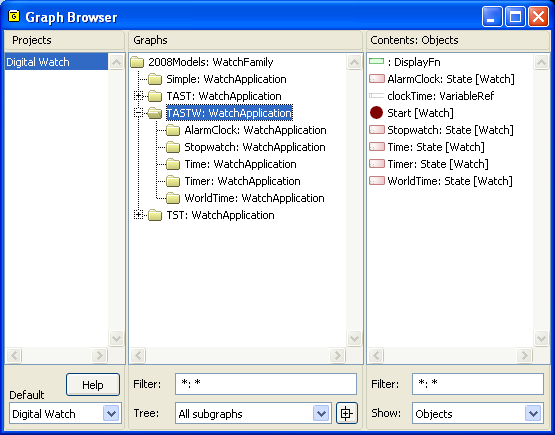
Figure 3-23. Graph browser.
The middle list shows all the
graphs that belong to the selected projects or are sub-graphs of them, and the
list on the right shows the elements of the selected graph. You may determine
which elements (objects, relationships, or roles) of the selected graph are
visible in the right hand list from the pull-down list labeled
Show. In
Figure 3-23 all objects of the graph
‘TASTW’ are shown (please note that the contents of the Graphs list
is filtered to show only WatchApplication models whose name starts with capital
‘T’).
Browsing graph hierarchies
The Graph Browser also allows you to inspect hierarchies
between graphs. Whether the hierarchy shown in the tree view is that of
decomposition, explosion, both of them (the default setting) or none can be
changed from the
Tree pull-down list. In
Figure 3-23 the hierarchy is shown
according to explosion structures: e.g. ‘TASTW’ graph has direct
sub-graphs called ‘Time’ and ‘Timer’ (there are also
others but as the view is filtered with ‘T*’, only the ones with a
‘T’ as the first character in their names will be shown).
| Note
that a graph may occur more than once in the hierarchy, e.g. if it is used as a
decomposition of an object in several different graphs. In this case, the
hierarchy below that graph is shown only the first time it occurs: only the
graph itself is shown below each graph for which it is a
sub-graph. |
Managing graphs
From the menu of the Graphs list (
Figure 3-24) you can open graphs in
editors, execute and access generators, view the properties of graphs, open
graphs in the Info Tool, duplicate graphs, delete graphs or their
representations, and create new graphs. This menu is largely similar to the
Graph menu in the editors, with the addition of duplication and deletion
operations.
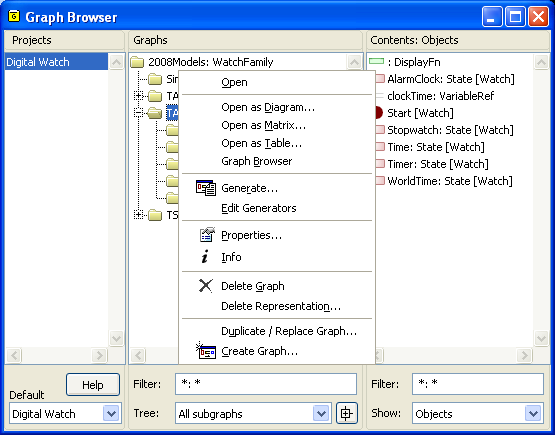
Figure 3-24. Menu for managing graphs.
To duplicate or
replace a graph:
| 1) | Select
a graph from the list (with the left mouse
button). |
| 2) | Open
the pop-up menu (with the right mouse
button). |
| 3) | Select
Duplicate / Replace Graph... and a Replace Tool
will open. |
The Replace Tool is described in
Section
3.3.5. If Deep Copy or Copy to
Depth is selected, and no context is added to the right-hand list of the Replace
Tool, the operation will simply create a new graph that is a duplicate of the
current graph. Copying to a depth of 1 will result in the objects from the
original graph being shared with the duplicate graph. Copying to a depth of 2
will create new copies of those objects, but not of any objects they may contain
in properties, and not of any explosion or decomposition graphs they may have.
To delete a graph, select it and choose
Delete
Graph from its pop-up menu. Confirm the deletion
dialog that opens
Similarly, you can delete some or all representations of a
graph
, but leave the conceptual graph. Note that if you
delete representations, their relationships will be deleted and objects may be
deleted depending on your current deletion settings. If you want to keep the
conceptual relationships and objects, open a new diagram representation on the
graph first, and do not delete that. Alternatively, you could open a Diagram
Editor and select and copy the elements you want to keep. After deleting the
unwanted representations, you can open a new diagram for that graph and paste
the copied elements there.
To delete representations of a graph:
| 1) | Select
a graph from the list (with the left mouse
button). |
| 2) | Open
the pop-up menu (with the right mouse
button). |
| 3) | Select
Delete
Representation... |
A
list dialog opens for selecting the representations to be deleted.
| 4) | Choose
the representations to delete and press
OK. |
If no graph is currently selected,
the menu allows you to create a new graph. You can then select that graph and
open it in an editor.
Managing other elements
The element list on the right has four operations: viewing and
editing the properties of the element, inspecting its use in different models,
copying it to the clipboard or replacing the element.
To open a property dialog for a given element in a Graph
Browser:
| 1) | Double
click the element with the left mouse button.
Or |
| 1) | Select
an element with the left mouse button.
|
| 2) | Open the
pop-up menu (shown on the right in Figure
3-25).
|
| 3) | Select
Properties... |
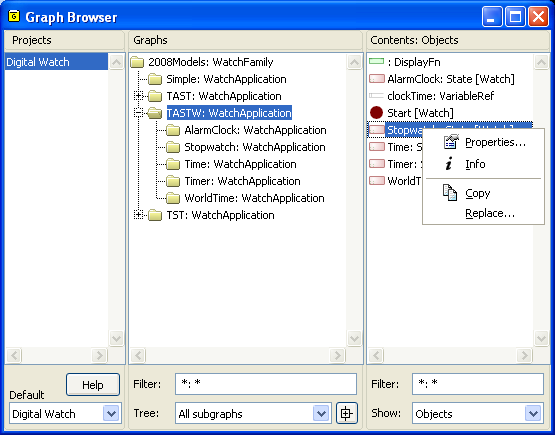
Figure 3-25. Menu for managing elements.
Property dialogs,
the Info Tool and Replace Tool are described in more detail in sections
3.3.1,
3.3.3 and
3.3.5.


