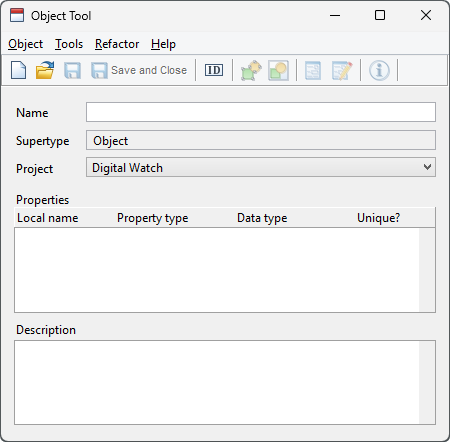
Figure 2–12. Object Tool.
| 1) | If you want the object type to inherit properties from another type, select Object | New Subtype... (or hold Shift down and press New in the toolbar) and select the desired supertype from the list of available object types. |
| 2) | Type the name of the object type into the Name field. Use unique names for the types, because otherwise you might encounter difficulties in selecting the right type from selection lists and dialogs. |
| 3) | Select the project for the new object type from the pull-down list of the Project field. If the project you want is not yet open, you can open it from the MetaEdit+ Launcher (Repository | Open Project...). Subtypes are always in the same project as their supertype, and once a type has been defined its project cannot be changed; in these situations the pull-down list will be disabled. |
| 4) | Define the properties of the object type. Property types can be added with Add Property... from the pop-up menu in the Properties list. Select an existing type from the list, or choose ‘New Property Type’ to create and add a new property type. This starts a Property Tool (see Section 2.6). Define the new property type there and press the Save and Close toolbar button. The newly generated property type will now appear in the Object Tool as the last property in the Properties list, or, if there was a property selected in the list, before that property. |
| 5) | Document the object type. Describe the object type in the Description field. This is the text that will be shown to the user in the help for the modeling language. |
| 6) | Generate the new object type. Press the Save toolbar button to save the definition of the object type. |
| 7) | A default dialog for the new object type will be generated automatically at the same time. If, however, you want to modify the default dialog select Edit Dialog from the Property list’s pop-up menu. This operation opens the dialog definition, and you can modify the appearance of the dialog (see Chapter 4 for details of dialog editing). |
| 8) | Define the symbol for the object type. If the object type is to be used as a direct element in diagrams, it needs a symbol (if no symbol is defined, a simple square is used as a default). The symbol can be defined by pressing the Symbol Editor toolbar button or choosing Tools | Symbol Editor from the menu bar. This opens a Symbol Editor where the new symbol can be drawn. See Chapter 3 for details of using the Symbol Editor. |
| 9) | A default icon for the object type in toolbars, lists and the Matrix Editor will be made from a scaled-down version of the symbol. If, however, you want to override the default icon press the Icon Editor toolbar button or choose Tools | Icon Editor from the menu bar. This opens an Icon Editor, similar to the Symbol Editor and described in Section 3.4. |