3.4 Changes & Versions
Tool
The Changes & Versions Tool can be opened from the main
MetaEdit+ launcher with
Repository |
Changes & Versions, or
with the similar toolbar button. It shows you what changes you have made to
models, helping you document the version history of your models. If your
MetaEdit+ license has the API features, it also offers integration with an
external Version Control System (see Section
3.5).
The history is shown as a tree
with
Versions at the top level, containing Transactions, containing Graphs or Objects
that changed in that transaction. In
Figure
3–51 we can see that the current transaction has changed two graphs,
Stopwatch and WatchModels. Stopwatch has had two new objects and three
relationships added. WatchModels is shown in gray, as there were no changes on
the graph level, only a change to an individual property in the graph. With his
memory suitably refreshed by this information, the user has entered a comment
describing the changes in this transaction.
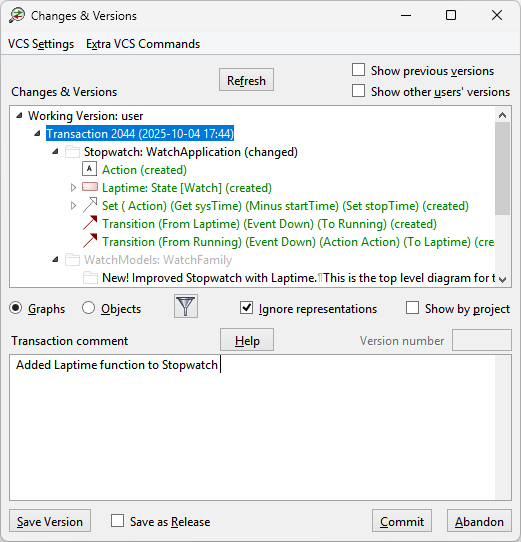
Figure 3–51. Changes & Versions Tool.
The
information in the tree is built when the window is opened, when a transaction
is committed or abandoned, or when the
Refresh button is pressed. By
default the tree shows only the current Working Version of the current user, but
the
Show previous versions and
Show other users’ versions
checkboxes can broaden this to previous versions and all users. The changes for
an element in the tree can be inspected with pop-up menu actions
Open
(Section
3.4.1) and
Compare
(Section
3.4.2).
The Graphs and Objects radio buttons choose
whether to show graphs with the objects that have changed in them, as in the
figure, or objects that have changed and the graphs that contain them. The
default is Graphs, but in cases where only a few objects have changed,
but each is used in many graphs (possibly deep within them), Objects may
be clearer.
You can filter the tree by text in the versioning comments
you have entered for versions, transactions and graphs. Pressing the filter
button will open a Find dialog, where you can enter the string to match and set
search options (see
Find dialog in
Section
3.3.4). The filter button will
show as highlighted (e.g. blue outline on Windows 11) while it is in force.
Enter an empty filter string to turn it off.
You can choose to Ignore representations when
calculating what has changed, so simple graphical rearrangements of diagram
elements do not clutter the display. Show by project inserts an extra
level in the tree below transactions, grouping the changes by project.
The comment text box allows you to write a description of
the changes in the selected element — a Version, Transaction or Graph. All
comments within the current Working Version are editable; previous
versions’ comments are read-only. You can
Commit or
Abandon
the current transaction (as in the Launcher).
Save
Version will commit the current state as a version:
see Section
3.4.3; with
Save as
Release checked, it will ensure all changes from all
users are versioned and commented: see Section
3.5.5.
Color and symbols are used to highlight specific types of
change in the tree:
 | New
graphs and other newly-created elements are shown in green.
|
| Deleted
graphs are shown in
red. |
| Changed
elements are shown in
black. |
| Elements
that are not themselves changed, but which are parents for elements in the tree
that have changes, are shown in
gray. |
| Graphs
that have been deleted and garbage collected are shown with a gray folder with a
red X. |


