3.3.4 Text Editor
MetaEdit+ provides a built-in text editor for editing long
text property values. The Text Editor includes basic text processing functions
in the
Edit menu and in the pop-up menu of the editing area. These
functions include find, replace, cut, copy and paste and undo. Shortcut keys are
provided for the most frequently used functions, and for setting fonts.
Furthermore, you can save and retrieve text in the editor from external files
and print the text through the functions in the
File
menu.
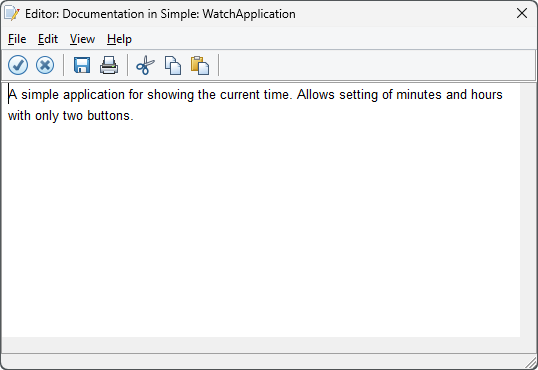
Figure 3–43. Text Editor.
You may also use an
external text editor program, configurable on the Paths page of the Options Tool
(see
Paths settings in Section
3.1.3 for details).
A selected block can be indented or unindented with
Tab or Shift+Tab. Other shortcut keys for editing include the
following, which also work in other text fields in MetaEdit+:
|
Ctrl+X
|
Cut
|
|
Ctrl+C
|
Copy
|
|
Ctrl+V
|
Paste
|
|
Ctrl+A
|
Select All
|
|
Ctrl+F
|
Find
|
|
Ctrl+G
|
Find Next for selected text
|
|
Ctrl+Shift+G
|
Find Previous for selected text
|
|
Ctrl+R
|
Replace
|
Shortcut keys for setting fonts include:
|
Ctrl+B
|
Toggle bold
|
|
Ctrl+I
|
Toggle italic
|
|
Ctrl+U
|
Toggle underline
|
|
Esc b
|
Bold
|
|
Esc B
|
Not bold
|
|
Esc i
|
Italic
|
|
Esc I
|
Not italic
|
|
Esc u
|
Underlined
|
|
Esc U
|
Not underlined
|
|
Esc s
|
Serif
|
|
Esc S
|
Sans serif
|
|
Esc +
|
Large size
|
|
Esc -
|
Normal size
|
|
Esc x
|
Remove all formatting
|
Find dialog
Choosing
Find... from a menu (often Ctrl+F) will open a
Find dialog (
Figure
3–44).
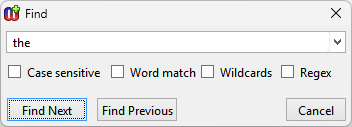
Figure 3–44. Find dialog.
At the top is an input
field for a search string, combined with a combobox remembering previously
entered search strings. Below that are checkbox options for how to match the
search string in the text. For Wildcards, # indicates a single character and *
zero or more characters. Regex allows using Regular Expressions: see Appendix 1
in the ‘MetaEdit+ Workbench User’s Guide’ for details.
The Find Dialog stays open after as long as you do not
close it with the Cancel button. You can thus continue finding occurrences of
the search string, while the dialog stays open and the underlying editor tracks
the selection according to the current match.
The dialog automatically looks ahead for the next and the
previous match, and enables the Find Next and Find Previous
buttons accordingly. This gives immediate feedback whether it is useful to
request a next or previous search.
After the dialog has closed, in most text widgets you can
use Ctrl+G and Ctrl+Shift+G to continue the same search to the next or previous
matches.
The Find dialog is also available from the Shift popup
menu in many list, tree and table widgets: see ‘List dialogs and keyboard
search’
above the
Contents.


