5.2.1 Generating
MetaEdit+ offers generators
to check,
review or document the design results. Some of the most useful generators are
pre-defined into MetaEdit+ and they can be used to study the design results
independently of the modeling language in use. These language independent
generators are:
 | Checkings
to list the objects that have no relationships with other objects (orphans), and
any empty properties in
objects. |
| Dictionary
to print out all the objects with related definitions and documentation (taken
from the documentation field of the
object). |
| Export
graph to HTML produces an HTML file for web browsers. It shows any diagram
representation of the graph as a PNG picture with a clickable image map, and
describes the objects in the graph with their relationships and subgraph links.
For more information on documentation generation see Section 5.2.2.
|
| Export
graph to Word includes the same design information as the above HTML
generator, but produces the file for Microsoft Word. This generator uses a Word
template called metaedit.dot. By
default, this template file is located in the reports sub-directory under
the MetaEdit+ home directory. It specifies the styles, headers, cover page, and
an automatic macro that saves the generator output, initially in RTF format, to
a Word document. The diagram is represented as an editable vector graphic
picture in
Word. |
| Metrics
to calculate and report various metrics data such as total number of objects,
number of objects per type and number of relationships per type from the
selected graph and its
subgraphs. |
| Object
Connections to show how different objects are related to each
other. |
| Object
List to describe all the objects included in the
graphs. |
| Object
Nesting to get information whether there are objects in a diagram that
graphically overlap each other (please note that each object is counted only
once using its oldest instance, i.e. reused versions of objects are not
counted). |
| Property
List to describe all the properties of the
objects. |
| XML
to export the contents of a graph as a naive XML file, including objects within
the graph with their properties. |
In addition to
these language-independent generators MetaEdit+ provides several
language-dependent ones. Examples of these generators are
‘Autobuild’ and ‘Watch family documentation’ in
WatchFamily graphs. Similarly, all code generators are language-dependent (see
Section
5.2.3).
Executing a generator
To execute a generator:
| 1) | Select
a graph (e.g. ‘2008Models’) in the Graph Browser in the Launcher.
|
| 2) | Press the
Generate button in the Launcher toolbar. Alternatively, open the pop-up
menu with the right mouse button and select Generate... (Figure
5-2). |
 | If
you press Generate without selecting the graph first, you will be
prompted for the graphs you want to execute a generator. The generator then must
be one that is applicable to all selected graphs (common
supertype). |
| You
can also execute generators in a similar way from a Type Browser, or from any of
the editors through Graph |
Generate.... |
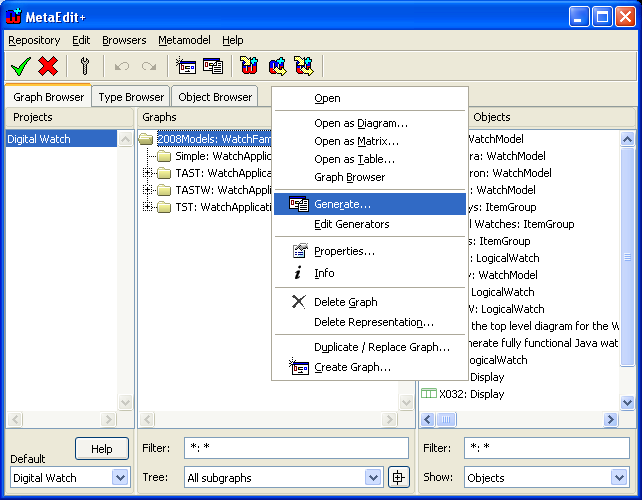
Figure 5-2. Executing generators for the graph.
After the
selection a dialog opens allowing you to select one of the generators that are
available. The available generators are those defined in that graph type, its
supertypes, or the supertype of all Graph types, Graph itself. The generator you
select is then executed on the graph you selected, and a Generator output tool
opens showing the generated text (
Figure
5-3). Alternatively, generators can output directly to files: then a window
will open listing the file names and sizes. If a file could not be written to,
the window will show the operating system’s message stating why not, e.g.
the directory did not exist. The output intended for the file will be opened in
a Generator output tool, named after the desired file.
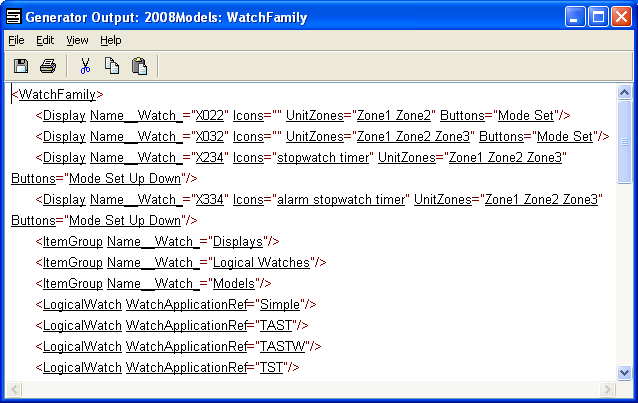
Figure 5-3. Example of Generator Output.
In the Generator
output tool
you can view the generated generator output.
You can also edit it with the normal text editor functions in the pop-up menu,
Edit menu or toolbar (see the corresponding functionality in the Text
Editor in Section
3.3.4).
The Generator output tool also includes functions for
saving the generated text to a file, inserting ASCII text from a file, and
printing the output (for printing see also Section
5.1). It also provides the possibility to
set word wrapping and the base font for its text display.
The underlined text in the output window represents a link
to the element that the underlined text refers to. When a piece of underlined
text is double-clicked its link target is shown. If the link target is an
element within a diagram, matrix, or table it will be opened and the element
becomes selected. For example, if the “Display” on the second line
is double-clicked, the WatchFamily diagram is opened and the corresponding
instance of Display is selected. If the link target is a property, we have two
cases. If the property belongs to a graph its property dialog is opened. If not,
an info dialog will be opened for the property. For example, if the “Name
[Watch]” (see the above output) is double-clicked, an info dialog for the
property shows the GOPRR elements that use this property and allows opening
their propery dialog. Lastly, if the link target is a graph the graph will be
opened: a double-click on the above output’s “WatchFamily”
opens the WatchFamily diagram. To inactivate the linking and other text
emphasizing, select the text, press Esc and then press
x.
To exit from the Generator output tool select
File |
Exit.


