4.1.4 Subgraphs
Decomposition
Decomposition is an operation that allows the user to perform
an arbitrary diagram leveling. If the language in use supports decomposition,
MetaEdit+ allows the user to decompose elements of a diagram into a new
sub-diagram. You can find out which object types can be decomposed into which
graph types by selecting Help | Graph Type... and the
‘Subgraphs’ help item.
| 1) | Select
an object in a diagram (e.g. state ‘Stopwatch’ in a
‘TASTW’ WatchApplication diagram of the ‘demo’
repository).
|
| 2) | Select
Decomposition... from object’s pop-up menu or select Edit |
Decomposition.... |
 | Decomposition
is language-dependent. Thus, not all languages use decomposition and diagram
leveling, nor is it necessarily supported in all predefined lanaguages in
MetaEdit+. If decomposition is not allowed for the object a dialog will inform
you of this. |
Depending on your dialog
answer preferences (see Section
3.1.3)
you will be asked whether you want to attach an existing graph (if any of the
right type exist), or create a new graph as the decomposition graph of the
selected object (
Figure 4-16). If you
choose to create a new graph, you will be prompted for its type, and a property
dialog will open on a new graph of that type. In either case, you will be
prompted for which representation of the decomposition graph you want to open
(if there is only one representation, it will open straight away), or whether
you want to create a new representation.
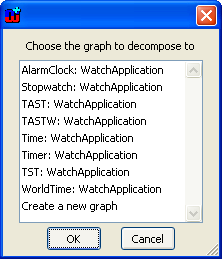
Figure 4-16. Select the graph type for the new decomposition.
To
view an existing decomposition:
| 1) | Select
an
object. |
| 2) | Select
Decomposition... from object’s pop-up menu or select Edit |
Decomposition.... |
| 3) | Select
Open from the dialog that opens (Figure
4-17). |
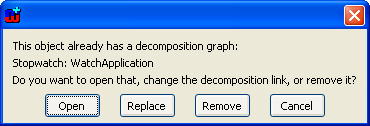
Figure 4-17. Opening a decomposition graph.
As can be seen
from
Figure 4-17, you can also replace
an existing decomposition so that the selected object now decomposes to another
graph, or remove the existing decomposition link from that object.
If you choose
Open a new Diagram Editor opens.
Figure 4-18 describes an example of
decomposition in which a state called ‘Stopwatch’ is decomposed into
a sub-diagram.
| Note
that the decomposition information for the selected object can be found from the
Info Tool for graphs and from the status bar at the bottom of the Diagram Editor
window. |
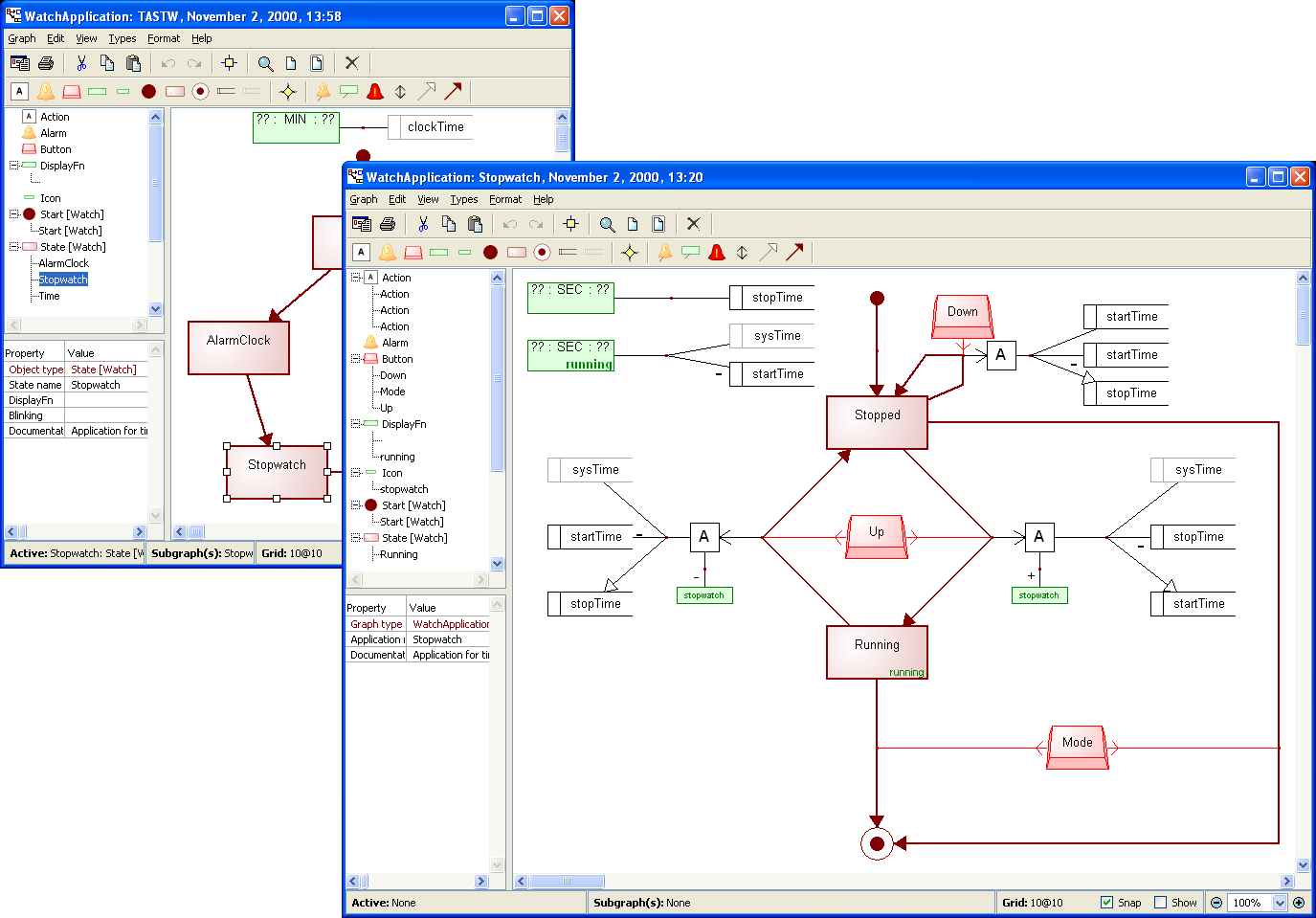
Figure 4-18. Decomposition in a Diagram Editor.
Explosions
Explosion forms another way to connect elements of a graph to
other graphs. Unlike decomposition, explosion is also possible for relationships
and roles. It allows you to make links from a design element to several graphs,
and to allow an element to have a different explosion link in each graph where
it is used. In contrast, an object can have only one decomposition, which is the
same wherever that object is used.
To
make, view or remove explosions
select
Explosions... from the object, relationship, or role pop-up menu,
or from the
Edit menu.
| Note
that any existing explosion information for the selected design element can be
seen from the Info Tool for graphs and from the status bar at the bottom of the
Diagram Editor window. |
Opening first subgraph
While MetaEdit+ provides a number of ways to define and manage
complex subgraph structures, the most common subgraph operation is to open the
first – and usually only – decomposition or explosion graph for the
current element. Diagram Editor implements a short cut for this specific
operation: the first subgraph for an element can be opened by double-clicking it
while holding down the
Ctrl-key.


