3.3.2 Component Selection Tool
The Component Selection Tool
allows you
to find an existing component for reuse. This can be either on the basis of its
type, or by ‘diving down’: following links through other elements,
e.g. from a graph, to an object in that graph, to an object included as a
property. This is particularly useful if the object you want to attach has not
yet been loaded, in which case it will not appear in lists of objects of the
specified type.
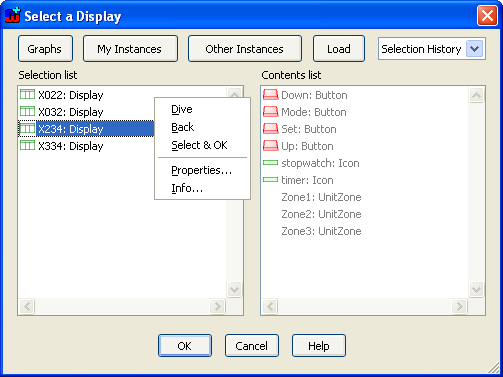
Figure 3-36. Component Selection Tool for choosing a Display.
The
list on the left initially shows all objects of the required type and its
subtypes (if no elements of that type are currently loaded, you will be warned
and the list will show all loaded graphs, from which you can Dive down:
see below).
If the object you want to reuse is visible:
| 1) | Select
it with the left mouse
button. |
| 2) | Press
OK or alternatively choose Select & OK from the pop-up menu
(Figure 3-36).
|
When an object is selected on the left, the
Contents list on the right shows the objects it contains or refers to (e.g. as
properties). From either list you can dive down (Dive in the popup menu),
filling the left hand list with the contents of the selected object. You can
also jump Back one level, or Edit... or view the Info...
for the selected object.
Items that are of the required type are shown in the
normal font: double-clicking them is the same as choosing Select &
OK. Items not of the selected type are shown in an italic font:
double-clicking is the same as choosing Dive.
For more comprehensive browsing the Component Selection
Tool offers navigation buttons at the top of the window. The
Graphs
button fills the left-hand list with all available graphs, allowing you to dive
down to an object you know is contained in a certain graph.
My Instances
changes back to showing instances of the required type.
Other Instances
allows you to browse instances of another type. For example, if you want to
reuse a Parameter, and you know it is contained in a certain Operation in a
certain Class, you can view all Classes with this button, then dive down via the
Operation to the Parameter you want. The
Load button loads more objects
from the repository (see Section
3.1.2).
The Selection History pull-down list allows you to
jump quickly back to a place from which you have previously chosen objects in
this tool.
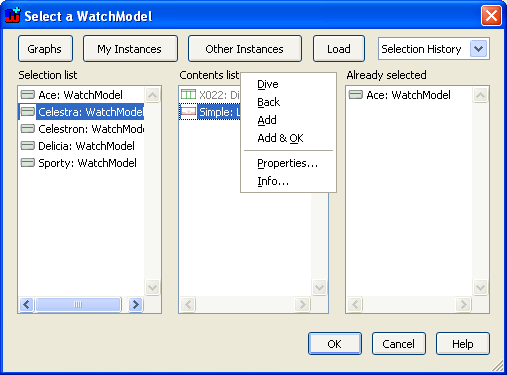
Figure 3-37. Component selection tool for multiple elements.
In
situations where you can select multiple elements for reuse the tool looks
slightly different (
Figure 3-37). It
works as described above, with the exception that you collect the objects you
want into the ‘Already selected’ list on the right by selecting them
in another list and choosing
Add (or double-clicking them). Objects can
also be removed from the ‘Already selected’ list from its menu. If
you only want one object, you can add it and close the dialog in one operation
with
Add &
OK.


