3.6 Creating graphs
We now have all the metamodel fragments we need for the first
version of our Family Tree modeling language, so it could be a good time to
commit again. What we need to do now is to somehow assemble these fragments into
a complete modeling language. However, let us first consider again what we are
about to do. What is our Family Tree modeling language actually like? It is a
simple diagram notation for drawing family trees. This means that we should now
be able to define the diagram type of the Family Tree modeling
language.
In GOPPRR the metatype graph corresponds to
a diagram type. To create a new diagram type, we must create a new graph type
with the Graph Tool. Open the Graph Tool by pressing Graph Tool toolbar
button or selecting Metamodel | Graph Tool in the MetaEdit+
launcher.
First, enter the name for our modeling language
(‘Family Tree’) in the
Name field. Go to the
Properties list, press the right mouse button and select
Add
Property... from the pop-up menu. This time we do not want to create a
completely new property type, instead we shall reuse the existing ‘Family
name’ property as a name for our diagram; the name of each diagram can
thus be a family name. So, choose ‘Family name’ from the list of
possible properties (if asked, accept the default local name proposed by
MetaEdit+). Your Graph Tool should now look similar to
Figure 3-13.

Figure 3-13. Graph Tool.
Go next to the
Types page
on the Graph Tool tab view. This is where you choose the types you want to use
in your modeling language. Go to the
Relationships list, press the right
mouse button and select
Add... from the pop-up menu. From the list that
opens, choose ‘Family’ and press
OK. The ‘Family’
relationship now appears in the
Relationships list. Similarly, add
‘Parent’ and ‘Child’ roles to the
Roles list
(multiple selection is allowed) and ‘Person’ to the
Objects
list. Your Graph Tool should now look like
Figure 3-14.
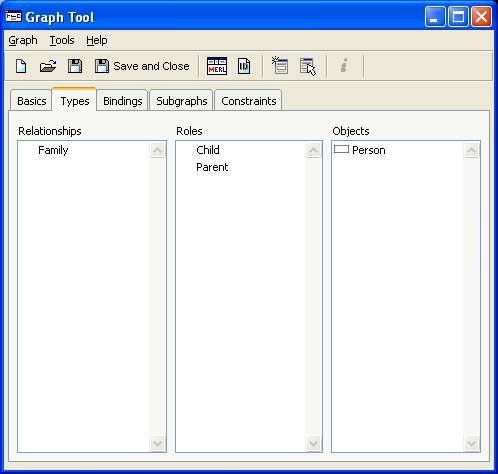
Figure 3-14. Graph Tool with types defined.
Go to the
Bindings page in the tab view. Here you will create the bindings that
actually connect your metamodel fragments as a complete modeling language
specification. Go first to the Relationships list, press the right mouse
button, select Add... from the pop-up menu and then ‘Family’
from the list.
Make sure that ‘Family’ is selected in the
Relationships list. Go to the Roles list and press the right mouse
button there. Choose Add... and then select ‘Parent’ from the
list. Now, with both ‘Family’ and ‘Parent’ selected, add
‘Person’ to the Objects list (skip the Ports list).
You have now created a part of the binding that says: “The Parent
role in a Family relationship must connect to a Person
object”.
As there are always two
Parents for a
Person, add another
Parent role similarly and add
Person
for it in the
Objects list. The Graph Tool should now look like
Figure 3-15.
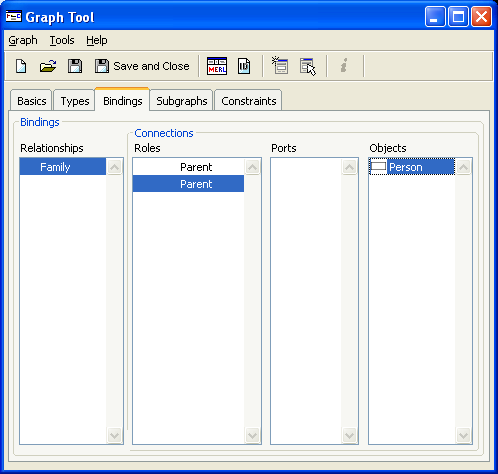
Figure 3-15. Graph Tool with a bindings.
In addition to a
Parent role, there is also a Child role in the Family
relationship. To create it, move the mouse over the Roles list, press the
right mouse button, choose Add... from the pop-up menu and then
‘Child’ from the list of available roles. As the Objects list
now becomes blank, go there and add the Person object again. We have now
created the part of a binding that says: “The Child role in a
Family relationship must connect to a Person
object”.
As the problem domain specification and our metamodel
implies, there are certain constraints that limit the set of possible
Family combinations: there can be two and only two
Parents but
zero to many
Children in a
Family. In GOPPRR, these constraints
are handled by roles. The requirement for two
Parents is already taken
care of with two separate
Parent roles, but the cardinality of
‘zero to many
Children’ must still be set. Select the
Child role from the
Roles list, press the right mouse button and
choose
Cardinality... from the pop-up menu. In the Cardinality Dialog
that appears (
Figure 3-16), set the
Minimum to 0 and the
Maximum to N and press
OK.
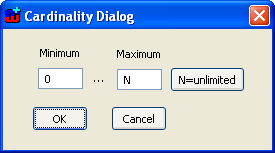
Figure 3-16. Setting binding cardinalities
Your Graph Tool
should now look like
Figure 3-17. Press
Save and Close to save the graph definition and close the Graph Tool (if
asked, accept the generation of the default dialog). Also remember to commit
your work again.
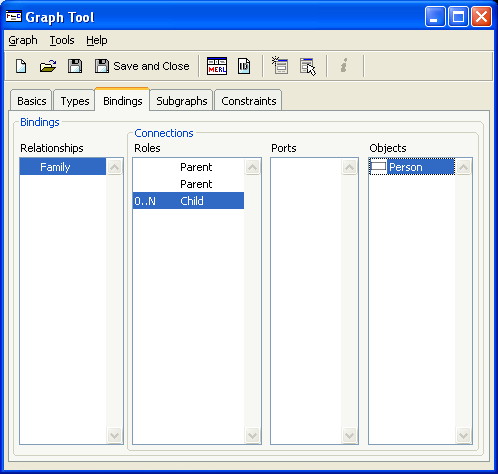
Figure 3-17. Graph Tool with binding defined.
Congratulations!
You have now completed the first version of our Family Tree modeling language.
Working
with the Family Tree Modeling Language
So far we have been exploring the metamodeling tools of
MetaEdit+. In addition to these, MetaEdit+ also offers a fully functional CASE
environment for using the modeling languages we have created. Let us now
familiarize ourselves with the CASE tool functionality by trying out the Family
Tree modeling
language.


