3.3 Symbol Editor for Roles
The Symbol Editor for Roles
works
similarly to the normal Symbol Editor, except for a few details presented in
this section.
When opened for an empty role symbol, the Symbol Editor
has a line coming from the left side of the drawing area. This line represents
the role line coming from an imaginary relationship left of the picture, and
ending at an imaginary object in the center of the picture. The role symbol
should be defined relative to the end of the line, because the end represents
the position where the role line will stop as it connects to the object symbol.
Symbol elements should not normally be placed to the right of the end of the
line, as they would then be on top of the object symbol. The symbol should look
as it would when pointing horizontally from left to right: role symbols are
rotated according to the angle of the role line.

Figure 3–22. Symbol for a ‘To’ role.
It
is also possible to have and edit multiple role lines in the Role Symbol Editor.
This is useful if you want to construct a visually more complex role line or
need to change the role line visualization dynamically. An example that requires
both of these aspects, the Road role from our Roadmap example, is shown in
Figure 3–23.
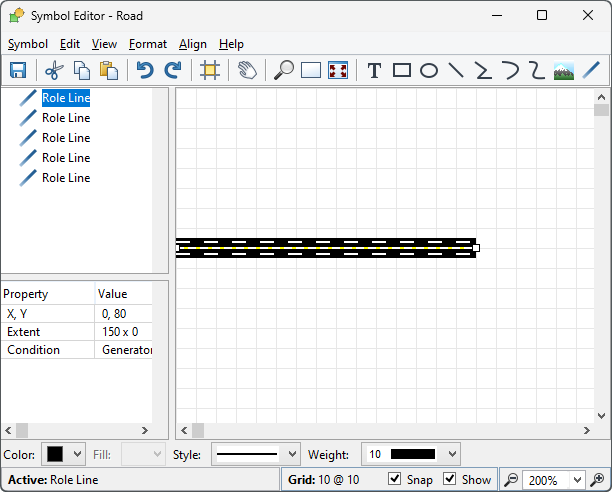
Figure 3–23. Symbol Editor with multiple role lines.
There
is no need to define Connectables for role symbols, and thus there are no
toolbar buttons for them. Otherwise the Symbol Editor for Roles works as an
ordinary Symbol Editor, with the exceptions and additional features explained in
the next few sections.
Editing role lines
You can edit the individual role normally by selecting it (for
precise selection, use the tab key or select the roleline from the list on the
sidebar) and using the usual selection editing tools from the toolbar, menu bar,
popup menu or formatting bar. Alternatively, to add, remove, organize and change
the appearances of role lines, select
Format | Format Role Lines... from
the menu bar or press
Ctrl+R. This will open the Format Role Lines
dialog, as shown in
Figure
3–24.
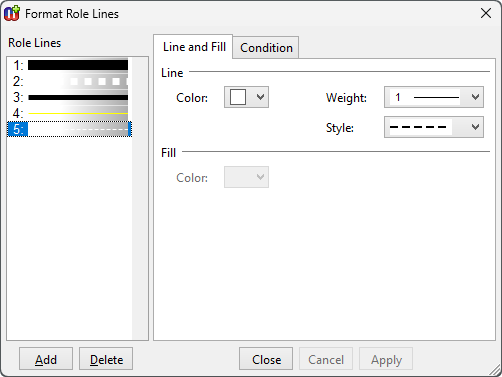
Figure 3–24. Format dialog for role lines.
The Format
Role Lines dialog lets you manage and format all the role lines separately from
other symbol elements. The
Role Lines list displays the currently defined
role lines on the left while the format dialog on the right provides the usual
Line and Fill and
Condition tabs, for the currently selected role
line. To add a new role to the
Role Lines list, press the
Add
button at the bottom-left corner of the dialog and to remove one, press the
Remove button. Commands for adding and removing role lines are available
also in the
Role Lines list’s popup menu with commands
Bring to
Front,
Send to Back,
Bring Forwards and
Send Backward
that reorganize the Z-order of role lines. The first role line in the list is
drawn first, and subsequent ones are displayed on top of it; each role line is
only displayed if its condition is fulfilled.
Aligning elements according to the role line
To align an element precisely with the end of the role line,
select the element and then select
Align | To Role Line End (or press
Ctrl-L). The midpoint of the right hand side of the element will be
aligned with the right end of the role
line.
Rotation
When building symbols for roles, you must take into account
the rotation of role symbols with their lines. For most elements there are two
options for rotating: a true rotation along the role or just moving around the
line without rotating. The text fields are an exception to this: as text is only
printed horizontally, they can not rotate.
To set the rotation behavior of an element, open the
Format Dialog for it. Open the Rotation tab and check or uncheck the
Allow element to rotate box as needed.
As an example, imagine a low, wide element above the end
of the role line. In a role that points down in a diagram, that element will
always be to the right of the role line: its center point has been rotated
relative to the end of the role line, just like the role line itself. If the
element is set to rotate, it will now be tall and thin. If the element is set
not to rotate, it will remain low and wide, and thus may even partially cross
the role line. Such effects must be taken into account with elements that do not
rotate, and are not roughly as wide as they are
tall.


