2.6.4 Widgets for String properties
A Property type of data type String can choose one of several
widgets that will be used for entering values of that
property.
Input Field
The default selection is
Input Field, which is a single
line box of approximately 30 characters by default (it can be resized).
External Element
The
External Element widget type
is used when the string represents a file, resource or command in the operating
system. The widget used is identical to that for a normal Input Field, but its
menu has an extra
Execute item,
which sends the
contents of the property as a string to be run by the operating system. For
example, in Windows this can be a text file, a Word document, a URL (e.g.
https://www.metacase.com, or
mailto:info@metacase.com),
or a command. The menu also has a
Browse... item, to allow easy selection
of a new filename or folder name as the
value.
String List Widgets
The next four widgets all use pull-down lists, whose initial
set of values is defined in the property type. For these list types a
Value
list appears below the widget list. The Value list
contains the predefined values for this type. The list pop-up menu allows
addition, removal and changing the order of the values. Note that for Editable
Lists, this value list is often empty: the contents of the list are built up
separately for each project. The value list can also be edited conveniently in a
text editor, one value per line, by choosing
Edit as Text from its pop-up
menu.
Fixed List
In a
Fixed List the user can
only select among the predefined values.
Overridable List
In an
Overridable List the user
can choose a value from the list, or type a value that is not in the list.
Editable List
In an
Editable List new values
of the property that are typed in the field will be added into the list. Note
that the Editable List’s list contents are based on the values entered
into the value list by metamodeler, but each project that uses this property
type uses its own copy of the list, and the new items that the modelers add will
only appear within that project. Use the
Reset Projects button next to
the value list to reset these per-project copied lists of Editable List
values.
Radio Button Set
A
Radio Button Set is a special
case of a Fixed List widget. The initial values are given in the
Value
list like other list-based widgets, but they are presented as radio buttons
in the property dialog.
SOAP Fixed List
The
SOAP Fixed
List is a special case of a
Fixed List, where the list values are retrieved from an external source using
SOAP calls. This requires the configuration of the SOAP server connection and
retrieval message. When the SOAP Fixed List widget is selected, the Property
Tool appears as in
Figure 2–21.
Select the SOAP server and method from the pull-down lists.
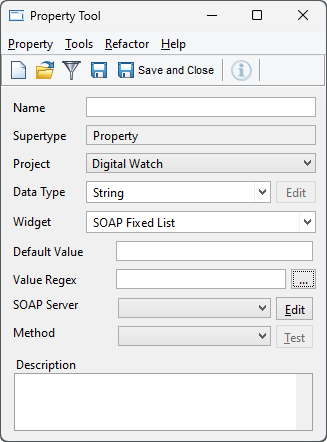
Figure 2–21. Property Tool with SOAP widget selected.
To
define a new SOAP server, press the
Edit button next to the SOAP Server
pull-down list. This will open a dialog for SOAP server
configuration
(
Figure 2–22). To define a new SOAP
server, enter its name and URLs for the WSDL file and the actual server (e.g.
file:///c:/myservices.wsdl and http://localhost/myservice). To finalize the
creation of the SOAP server definition, press the
Add button. The SOAP
server now appears in the list on the left. To edit an existing SOAP server
definition, select it from the list, edit its values on the right pane and press
the
Modify button to confirm the changes. It is also possible to view
those property types using a SOAP server definition by selecting it from the
list and pressing the
Info button. To remove a SOAP server definition,
select it from the list and press the
Remove button (remove is not
allowed if there are still property types associated with the selected SOAP
server definition).
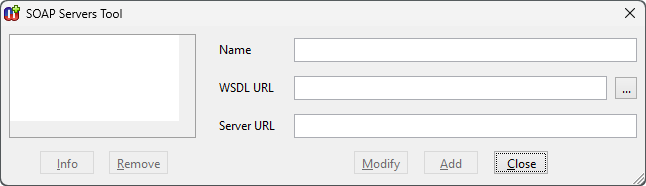
Figure 2–22. SOAP server configuration.
UUID Base64
A
UUID Base64 widget initializes
the property with a string representation of a Universally Unique Identifier
– a near-guaranteed globally unique sequence of characters. If the
property is set as read-only (by prefixing its local name by an underscore) this
can serve as a globally unique, permanent identifier. Unlike the object ID,
instances
created in different repositories will never have the same
UUID, but when an instance is
exported and imported into another
repository, it will keep the same UUID in both the source and destination
repository. The UUID is pseudo-random and will not reveal details of the
computer or user that created it. For compactness the UUID is represented in
unpadded Base64 encoding, so may include mixed case alphanumerics,
+ and
/ (but not
=). Creating a new copy of an element
containing a UUID (e.g. by Paste Special with deep copy) will result in an
entirely new UUID too.
UUID Hex
A
UUID Hex widget initializes
the property with a hexadecimal string representation of a Universally Unique
Identifier, similar to UUID Base64. For compatibility with other systems, the
UUID is represented in RFC 4122 canonical format: five hypen-separated groups,
with lengths 8-4-4-4-12, of lower-case hexadecimals, e.g.
123e4567-e89b-12d3-a456-426655440000. Note that changing the widget type of an
existing UUID Property type will not change how the existing String values are
displayed, only how new ones are created.


