3.2 Creating Object types
Object is the most obvious of the GOPPRR metatypes, as
objects are usually the main elements of a diagram in your modeling language. In
our case, our domain concept of
Person falls into this category. To add a
new object type, move the cursor into the
Objects list in Graph
Tool’s
Types page, click the right mouse button and select
Add
New... from the popup menu. This will open a new Object Tool (as in
Figure 3-5).
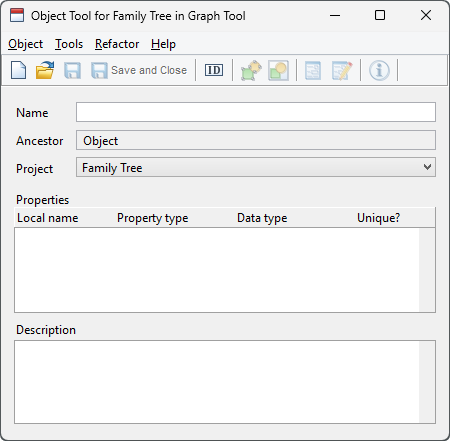
Figure 3-5. Object Tool.
Start creating the
Person
type by typing its name (i.e. ‘Person’) into the text field at the
top of the Object Tool.
Person needs some properties, too, so move the
cursor down to the
Properties list, open the popup menu and select
Add
Property.... You will now see a dialog prompting you to either select the
existing Family name property type or to create a new one (
Figure 3-6). Select ‘New Property
Type’ from the list and press
OK to open the Property Tool for a
new property type.
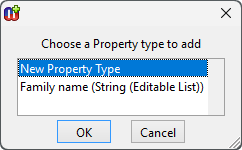
Figure 3-6. Dialog prompting for choosing a property type to add.
In
the Property Tool enter ‘First name’ as the name and press Save
and Close – we don’t need to change anything else as the default
values for other fields suit our purposes in this case.
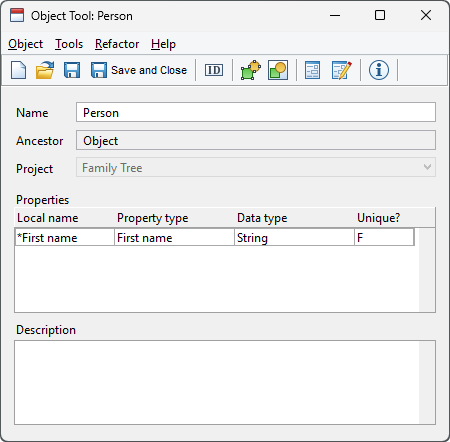
Figure 3-7. Object Tool with the 'First name' property.
After
adding First name, the Object Tool should look like
Figure 3-7. What we want to have next is the
Family name property for our
Person. This time we do not want to create a
completely new property type, instead we shall reuse the existing ‘Family
name’ property that we created for the Family Tree graph type. With no
selection in Object Tool’s Properties list, click the right mouse button
in the empty space below the last element, select
Add Property... and
choose ‘Family name’ from the list of possible property types. A
property slot for Family name is added at the end of the list. If a property
slot had been selected in the list, the new slot would have been added above the
selection – you can change the order by selecting a property and choosing
Move Property... in its pop-up menu. Your Object Tool should now look
similar to
Figure 3-8.
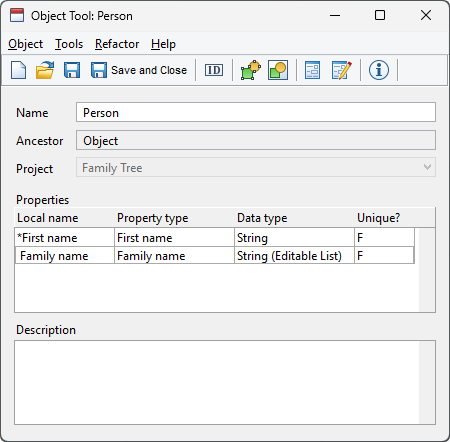
Figure 3-8. Object Tool with properties.
Press
Save and
Close on the toolbar to accept the changes and close the Object Tool. The
new
Person object is added to the
Objects list on the Graph
Tool’s Types page (as in
Figure
3-9). Press
Save in the Graph Tool. You have now completed the
definition of the
Person concept.
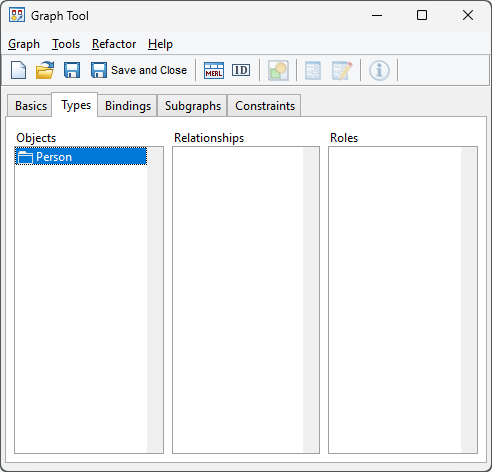
Figure 3-9. Graph Tool’s Types page with one object type defined.


