2 Logging into MetaEdit+
MetaEdit+ is a repository-based application and therefore a
connection with the repository must be established during the start-up. When
started, MetaEdit+ opens a Startup Launcher as shown in
Figure 2-1. This shows the repositories on the
left, in this case just ‘demo’, stored in the ‘demo’
directory in your MetaEdit+ working directory. The list on the right shows the
projects to open in the selected repository.
 | Note
that although the projects map to similarly-named subdirectories on disk, you
must always treat a repository as a whole, moving only the top-level repository
directory like ‘demo’ with all its contents. To export individual
projects or models, you can use the Graph Manager, documented in the MetaEdit+
User’s Guide. |
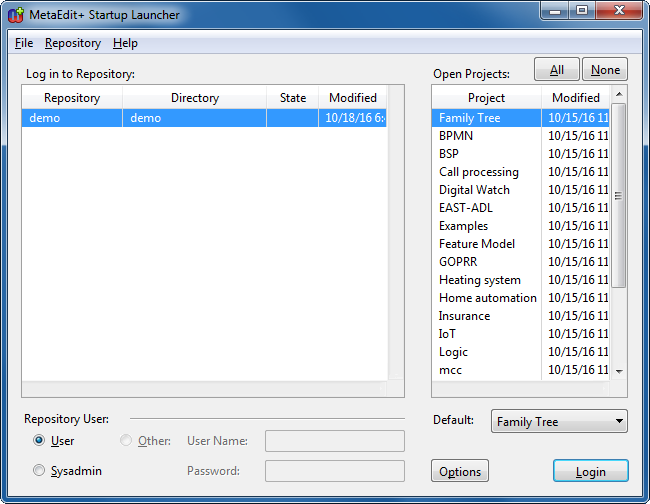
Figure 2-1. Startup Launcher.
Make sure that the
‘demo’ repository is selected from the
Log in to Repository
list and ‘User’ is selected as
Repository User. Select
‘Family Tree’ from the
Open Projects list (as in
Figure 2-1) and press
Login.
If you are using an evaluation version of MetaEdit+ and
this is your first login, a dialog will open for entering your evaluation
license code. Enter the evaluation license code exactly as given in the
evaluation instructions and press OK.
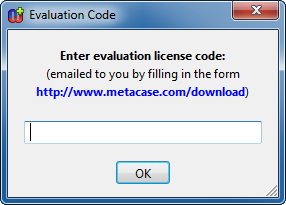
Figure 2-2. Evaluation license code dialog.
After a
successful login the Startup Launcher will close and you should see the main
MetaEdit+ Launcher (
Figure 2-3).
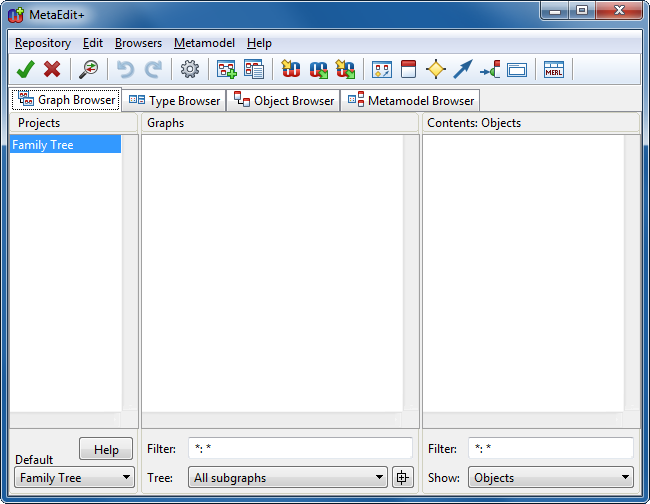
Figure 2-3. MetaEdit+ Launcher.
MetaEdit+ is now ready to
be used. If you want to quit MetaEdit+ before completing this tutorial, please
see Section
4.5 for exit
instructions.


