4.3 Watch Example and Windows Phone
The Watch example includes C# generator also for the Windows
Phone platform. In order to try out the Windows Phone applications generated
from the Watch example, you need to install Visual Studio Express 2013 with
Update 3 for Windows to get the required development tools, libraries and
emulator. This package – like all other Visual Studio downloads – is
available at
http://www.visualstudio.com/downloads/download-visual-studio-vs.
Download and install the SDK. After the installation, edit the
$visualStudioWP variable in the
‘__Paths’ subgenerator to point to the correct path if
needed.
 | It
is also possible to use Visual Studio 2012 or 2013 Professional or Ultimate
editions – just make sure that the Windows Phone SDK 8.0 and possible
additional required updates have been installed and edit the aforementioned
$visualStudioWP variable
in the ‘__Paths’ as
needed. |
Generating for WP is simple, just
select ‘C#: WP’ as the Generation target platform and run the
‘Autobuild’ generator. You can also launch the generation from the
Visual Studio extension. In order to provide compatibility with older versions
of Visual Studio and the Windows Phone platform, the Visual Studio project file
will be generated in Visual Studio 2010 format – the newer 2013 version
will can automatically convert and use this project file as well (you may need
to accept a few dialogs during the conversion process).
After the generation, the C# code will be loaded into
Visual Studio, compiled there and executed in the Windows Phone emulator (as in
Figure 4-6).
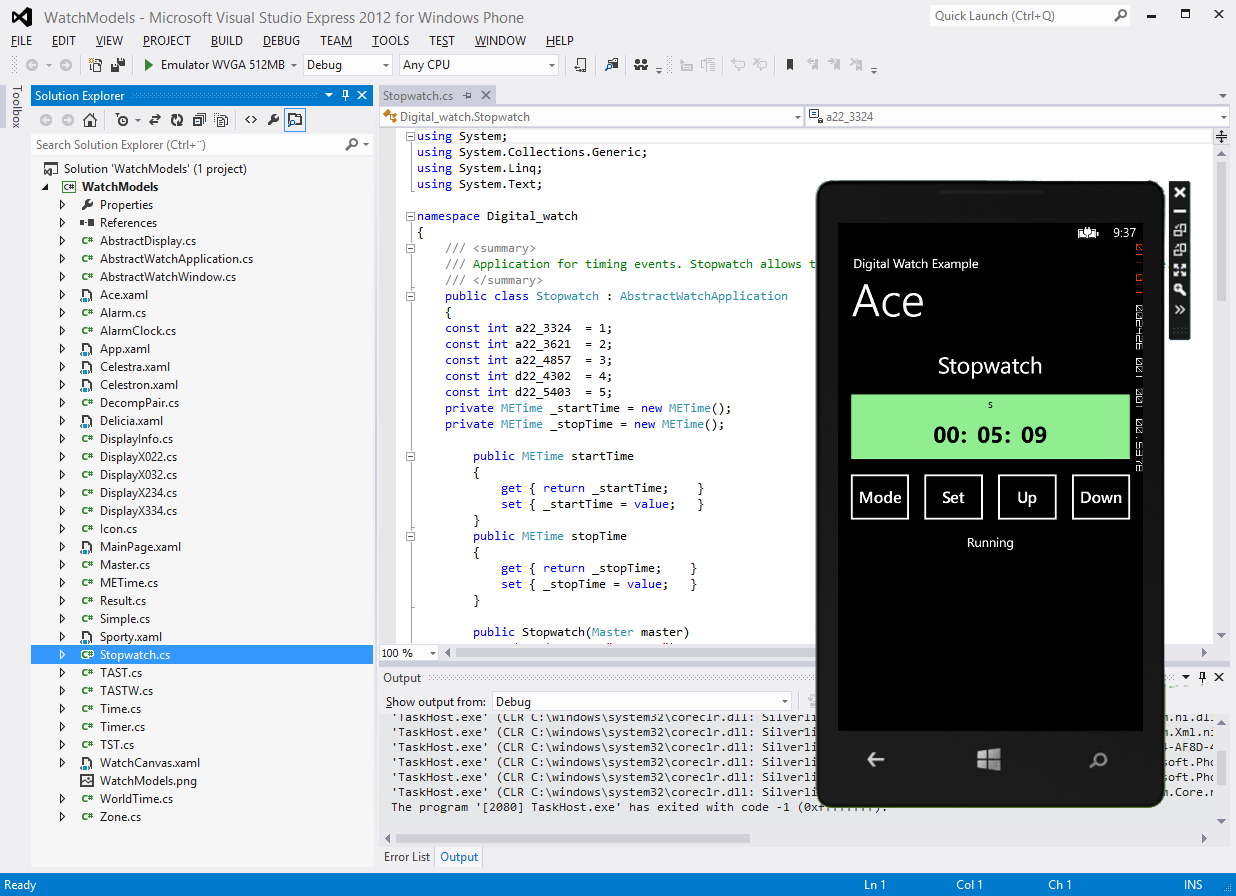
Figure 4-6. Visual Studio extension and Windows Phone


