5.1 Person as Male and Female
In our Family Tree language, we now have one concept of
Person with properties of First name and Family name. We
know, however, that in most cases we probably would like to store more
information than that about each Person. For most applications it would
be desirable to know dates for a Person’s birth and death.
Furthermore, as a female Person may change her family name when she gets
married, storing the maiden name separately for a female Person would be
a useful feature. In diagrams, we could also want to have a different symbol for
male and female persons.
Now all of this obviously calls for a specialization of
the concept of
Person into concepts of
Male and
Female.
However, as these two new concepts are straight subtypes of
Person, we
want to present this semantic fact in our metamodel also. Thus we assign all
common properties to the concept of
Person, define
Male and
Female as its subtypes, and add additional properties to
Male and
Female where needed.
Figure 5-1
presents a new version of the Family Tree modeling language metamodel with these
changes.
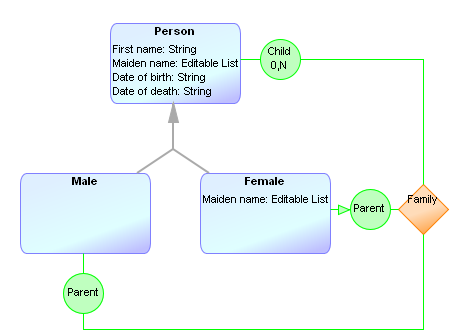
Figure 5-1. Family Tree metamodel with specialized Male and Female objects.
Now
we are going to make the same changes into our metamodel in MetaEdit+. Start the
Object Tool by pressing Object Tool toolbar button or selecting
Metamodel | Object Tool in MetaEdit+ launcher. In the Object Tool press
the Open button in toolbar or select Object | Open.... If
‘Person’ is the only object type currently defined, it will be
opened immediately – otherwise select it from the list dialog. You now
have the definition for Person in your Object Tool. Go to the
Properties list and add a property, choosing to create a new property
type. In the Property tool, enter ‘Date’ as the name. As the default
data type (string) and widget (input field) are correct, press Save and
Close (accept the addition of the property if asked) and go back to the
Object Tool. Select the newly created ‘Date’ property from the
property list and open its pop-up menu by pressing the right mouse button.
Select Local name..., enter ‘Date of birth’ into the dialog
that opens and press OK.
The local name was used here as a mechanism for reuse: the
same property may have several local names to make it more suitable for various
purposes. This will be further demonstrated as we create the ‘Date of
death’ property. As we have already defined a property of Date, we do not
now need to create a completely new property type, but we can reuse the existing
one. First, make sure no property is selected in the Property list (so the new
property will be added at the end), and choose
Add Property... from the
Property list pop-up menu. This time choose property type ‘Date’
from the list instead of ‘New Property Type’, and change its local
name to ‘Date of death’ the same way you did with ‘Date of
birth’. Now you have reused one property type, ‘Date’, as both
the date of birth and the date of death. Your Object Tool should now look
similar to the one in
Figure
5-2.
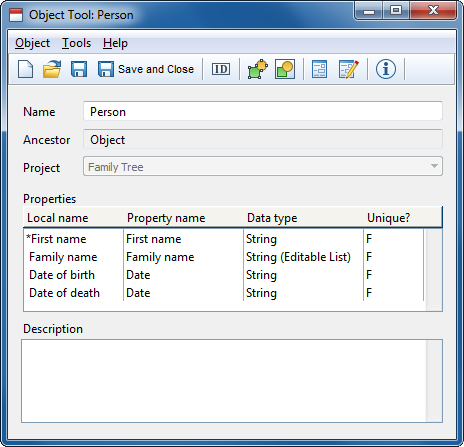
Figure 5-2. Object Tool with more properties.
Press the
Save button to accept the modifications. What we want to do next is to
create new types Male and Female as subtypes of Person. In
the Object Tool, select Object | New Subtype... from the menu, select
‘Person’ from the list of possible ancestor types, and press
OK. You are now creating a new Object type with properties inherited (and
thus shown red) from the Person object. As the concept of Male
actually adds nothing to the concept of Person, we can now create the
Male object by entering ‘Male’ as the name in this new Object
Tool. Then press Save.
As Male is a concept which we are going to use in
our diagrams, we need to define a graphical symbol for it. Start the Symbol
Editor, load the symbol called ‘Male’ from the symbol library and
modify it to use true properties instead of fixed text for the four text fields
named after properties (leave ‘Birth’ and ‘Death’ as
fixed text), as you did with the original ‘Person’ symbol. Save the
symbol and close the Symbol Editor.
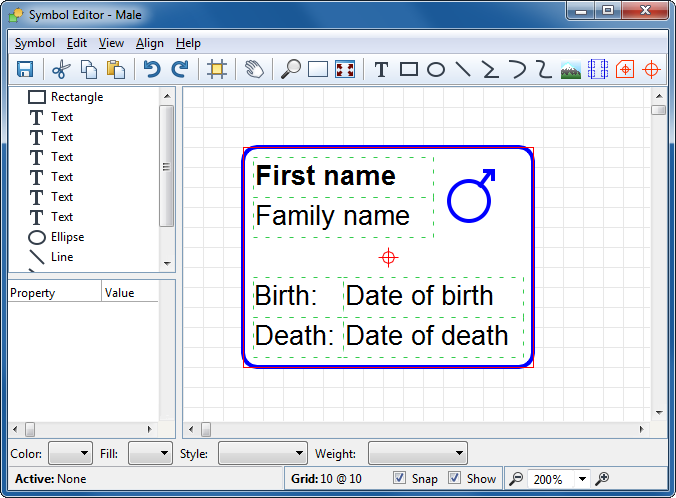
Figure 5-3. Symbol Editor with the completed symbol for Male.
Creating
the
Female object requires a little more work. Start again by creating a
new type as a descendant of
Person (i.e. select
Object | New
Subtype... and select ‘Person’ as the ancestor). Enter
‘Female’ as the name for this new descendant, and add an extra
property (reuse the ‘Family name’ property type), then give it a
local name of ‘Maiden name’. At the end, the Object Tool for the
Female object should look like
Figure
5-4.
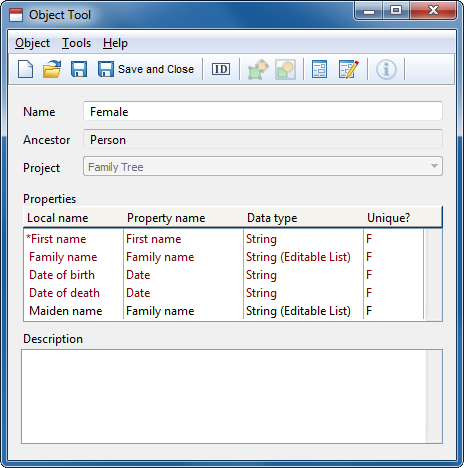
Figure 5-4. Object Tool for Female object
Press
Save, (allow the default dialog to be created if asked), and create the
symbol for the Female object in the same way you did for Male:
load the ‘Female’ symbol from the symbol library, assign real
properties for the five appropriate text fields and save the symbol. You can now
close the Symbol Editor and the Object Tool.
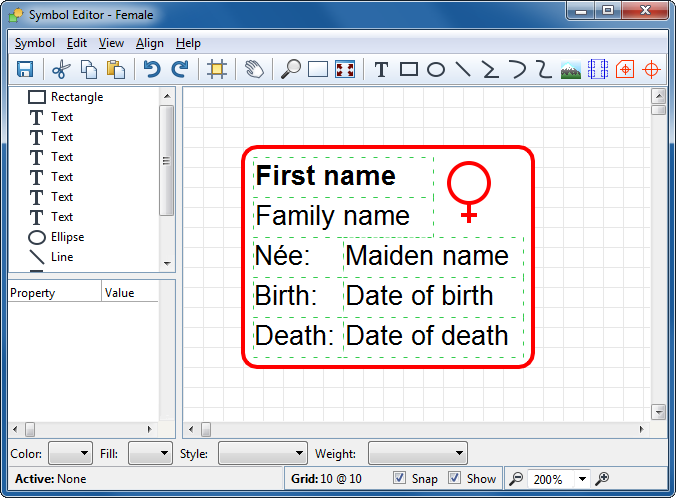
Figure 5-5. The Symbol Editor with symbol for Female
Commit
your work and start the Graph Tool by clicking Graph Tool toolbar button
or selecting Metamodel | Graph Tool in the MetaEdit+ launcher. In the
Graph Tool, press the Open button in toolbar. ‘Family Tree’
should be currently the only graph definition we have and therefore it should be
loaded automatically. However, if there are more definitions, choose
‘Family Tree’ from the list that opens.
Go to the
Types page in Graph Tool’s tab
view. In the
Objects list, select ‘Person’, press the right
mouse button and select
Delete from the pop-up menu. Then press the right
mouse button again, select
Add... and choose ‘Male’. Add
‘Female’ similarly to get to the state in
Figure 5-6 and close the Graph types
definer.
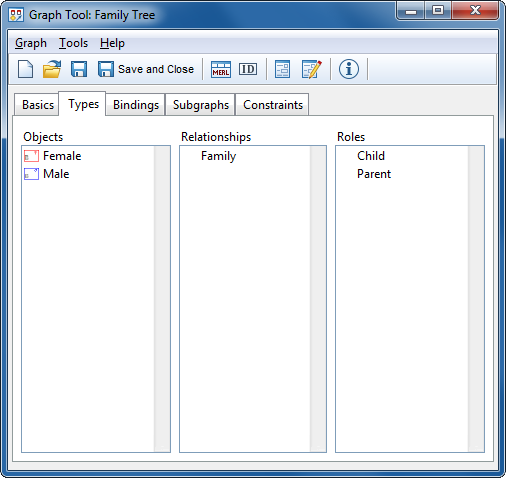
Figure 5-6. Modifications in Graph types definer.
Go to the
Bindings page. Choose the first
Parent role from the
Roles list.
Go to the
Objects list, delete ‘Person’ and add
‘Male’ in its place. Similarly, select the second
Parent
role and replace its
Person object with
Female. Your Graph Tool
should now look similar to
Figure
5-7.
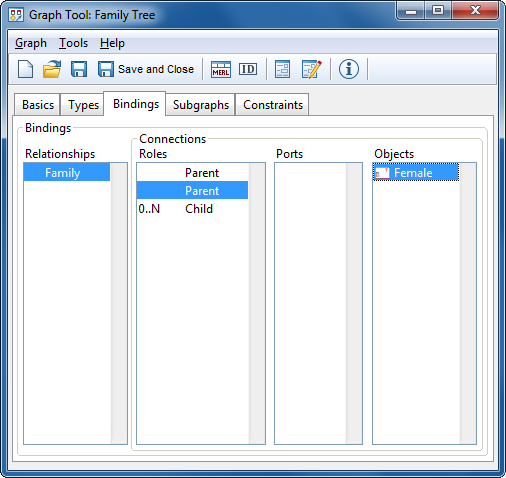
Figure 5-7. Modifications in Graphs bindings definer.
As
for the Child role, leave it connected to the Person object. While
Person was actually removed from the type set of our Family Tree modeling
language, its references were not and thus we can use it here. Person as
their super type allows both male and female to be used.
Press
Save and Close to accept modifications and
close the Graph Tool. The modifications for improving our modeling language have
been now made, so you can try it out again. Since this change was fairly
radical, you will have to delete all the old instances and create new ones: the
old objects were all of type Person, and now you want them to be Male and Female
instead.


