In the Diagram Editor, the second toolbar row contains the
object and relationship types of your language. Click the
Person button
there: the white box at the left end of that toolbar. This starts the creation
of a
Person object. To place the new
Person in our diagram, move
the mouse over the drawing area and click the left mouse button. You can now
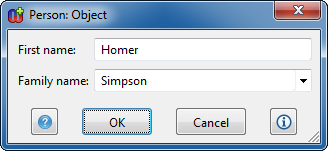
enter the information about the object you are creating in the dialog that opens
(as in
Figure 4-4). Enter the first name
and family name for the Person you are about to create (please note that you can
also choose the family name from the list with the mouse) and press
OK.
Figure 4-4. Entering information about an object
The object
is now shown with its properties in the drawing area of the Diagram Editor. Now
create a few more objects in the same way. Moving the symbols around and
resizing them works the same way as in any drawing tool. To change the property
values of a symbol double-click the symbol to bring up the property dialog. When
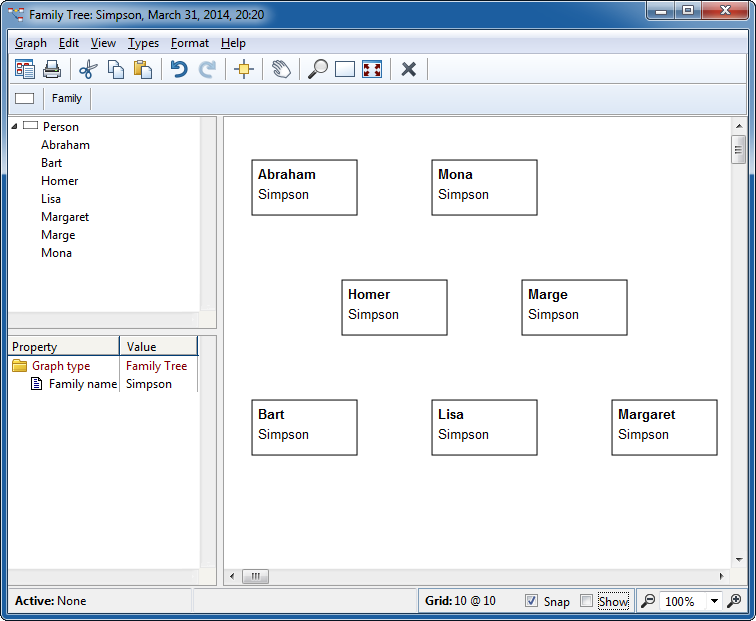
you have drawn a few more objects, your Diagram Editor should look something
like this:
Figure 4-5. The Diagram Editor with some objects