3.3 Creating symbols
As Person is a concept we are going to use in our
graphical representations of family trees, we need to define a graphical symbol
for it. You can start the Symbol Editor by selecting the Person object in
the Objects list on Graph Tool’s Types page, clicking the
right mouse button and selecting Edit Symbol from the popup menu. As
creating symbols is just familiar vector graphics drawing, we skip some work
here for now and import the symbol from a symbol library.
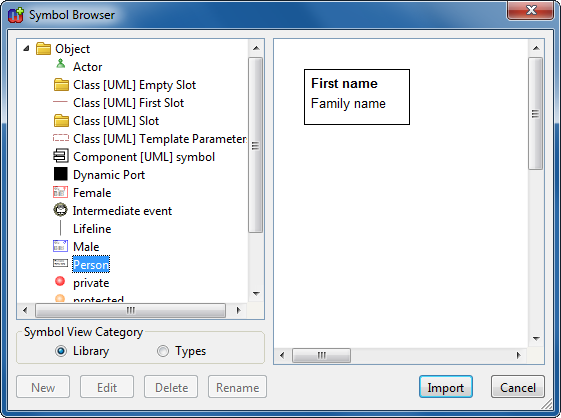
Figure 3-10. Symbol Browser.
In the Symbol Editor, select
Symbol | Import From Library... to open the Symbol Browser (as shown in
Figure 3-10), choose the symbol called
‘Person’ from the list by double-clicking it (or by selecting it and
pressing
Import). After this the predefined symbol is pasted into the
editor. Its elements are currently selected so that they can be moved around
with the mouse. Move the elements to the position you like and press the left
mouse button. Please note that after this the elements still remain selected, so
you may want to deselect them by clicking the left mouse button somewhere on the
unoccupied drawing area. The editor should now look like
Figure 3-11.
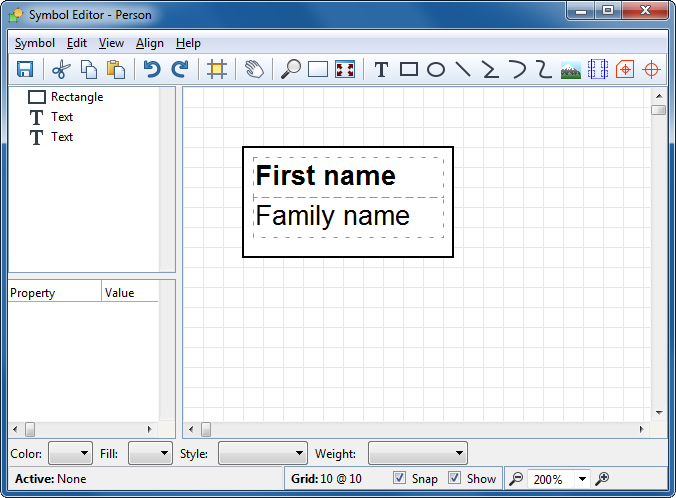
Figure 3-11. Symbol Editor with predefined Person symbol loaded.
The
‘First name’ and ‘Family name’ text fields there are
currently just fixed text, and instead we want to link them to the corresponding
properties in our Person object. Double-click the text ‘First
name’ or select it and choose Format... from its popup menu to open
the format dialog for the text element.
Currently, the Content source in the format dialog has the
Text radio button selected, to show the fixed text that is in the text
box in the middle of the dialog. We want to make our text field show the value
of the ‘First name’ property instead. To do this, click the
Property radio button and choose ‘First name’ from the
pull-down list next to it, as in
Figure
3-12.
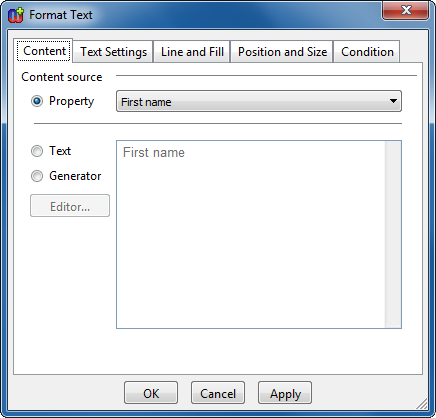
Figure 3-12. Format dialog for a text field.
Accept these
changes and close the format dialog by pressing OK. The name of the
selected property type now appears in the text field. In a similar way, set the
Content source of the lower text field to be the ‘Family name’
property.
After assigning the properties to the text fields, there
is still one more thing to do. We must define the connectable area for our
symbol, i.e. a perimeter the incoming connection lines will stop at. In this
case the default connectable is suitable for our purposes, so you can let
MetaEdit+ generate it for you by selecting
Symbol | Save or by pressing
the
Save button in the Symbol Editor toolbar. A connectable will appear
around the symbol elements as in
Figure
3-13.
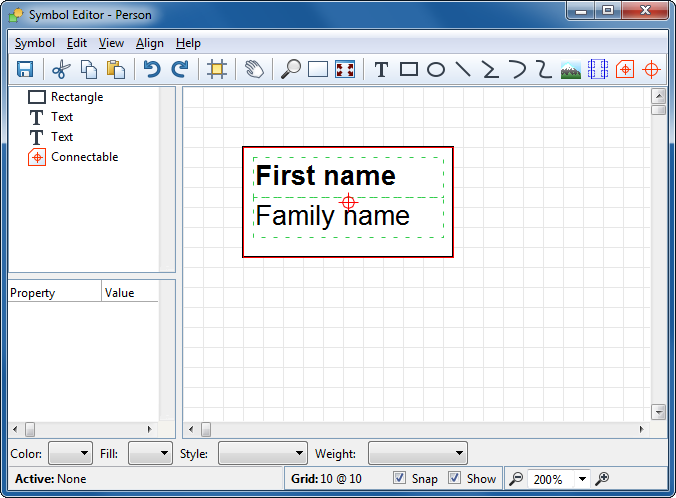
Figure 3-13. Symbol Editor with complete Person symbol definition.
The
symbol is now ready and saved, so you can close the Symbol Editor by selecting
Symbol | Exit or closing the editor
window.


