2.2 Playing around with the Watch Example
To start the tour of the watch example, look at the Graph
Browser in the MetaEdit+ main launcher. All models related to the watch example
are shown on the
Graphs list (make sure ‘Watch’ is selected
in the
Projects list). Choose the ‘2012Models’ WatchFamily
diagram from the list and open it in the Diagram Editor by double-clicking it,
or by selecting
Open from the pop-up menu (as shown in
Figure 2-1).
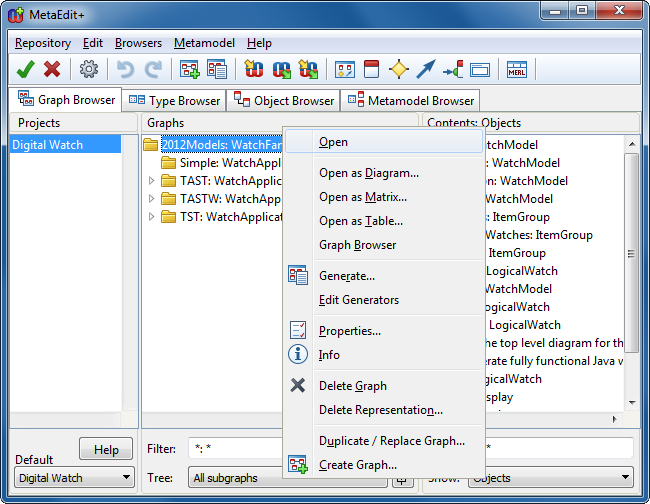
Figure 2-1. Opening a WatchFamily diagram.
The
‘2012Models’ WatchFamily diagram (
Figure 2-2) presents a family of related
wristwatch models. In the diagram, the actual models are shown in the
Models group at the top of the diagram, while the logical watch
application and display components are presented in the two groups at the bottom
of the diagram. To access the properties of a model element, double-click it or
select it and choose
Properties... from its pop-up menu.
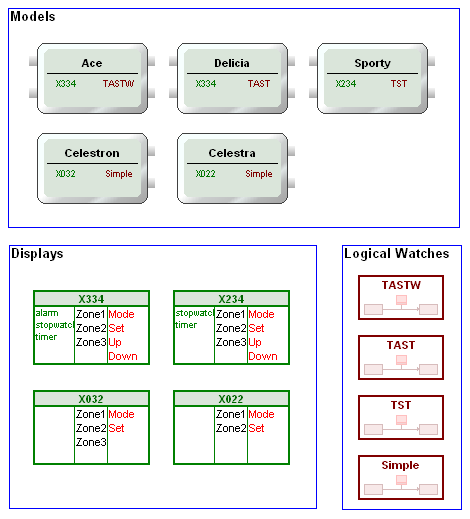
Figure 2-2. The ‘2012Models’ WatchFamily diagram.
To
further explore the watch example, let us take a look at how the logical watch
applications have been constructed. Choose the one called ‘TASTW’
from the
Logical Watches group, select
Decomposition... from the
pop-up menu and
Open from the following dialog (or simply double-click
‘TASTW’ while holding down the Ctrl-key. Note that on a Mac,
wherever this manual says to use Ctrl, you should use the Command key). This
will open the ‘TASTW’ WatchApplication diagram as shown in
Figure 2-3 (you could also have opened this
diagram from the Graph Browser).
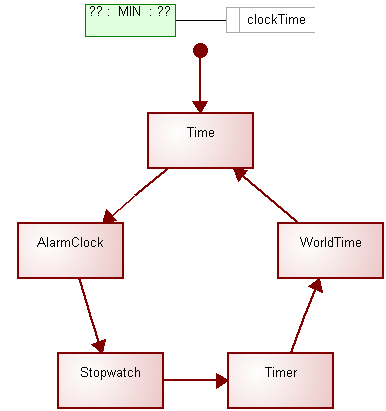
Figure 2-3. The ‘TASTW’ WatchApplication diagram.
This
diagram shows the configuration of the logical watch application. It only
contains the top-level logical configuration of sub-applications, basically
showing which sub-applications have been included into this specific logical
watch and in which order they are invoked. When the logical watch application is
started (i.e. the watch is powered up), the basic Time sub-application will be
invoked. If this sub-application is exited, a Stopwatch sub-application will be
started. The cycle is completed when Time will be re-activated when exiting from
the WorldTime sub-application. The name ‘TASTW’ comes from these
sub-applications’ initials in order. To see how the sub-applications have
been defined, choose one and open its decomposition graph by double-clicking the
sub-application element while holding down the Ctrl-key.
Now we are ready to generate the code of the test
environment for our watch models. Close all WatchApplication diagrams and go
back to the WatchFamily diagram. Before we run the generation, we have to choose
the target platform for which the code will be generated. Select Graph |
Properties... in the WatchFamily Diagram Editor and choose the language and
platform you are on from the Generation target platform list. ‘C#:
Windows’ should work by default out-of-the-box in most Windows XP/Vista/7
installations. Java works on a wider choice of platforms – ‘Java:
Windows’, ‘Java: Linux’ or ‘Java: Mac OS X’
– but requires you to install the Java SE Development Kit and set its
path, as explained in the Preface.
To invoke the code generation, select
Graph |
Generate... (or press the
Generate button in the Diagram Editor
toolbar) and choose ‘Autobuild’ from the list that opens. Since this
generator is used frequently, it has also been given its own
Build button
on the toolbar. However you invoke it, this will generate the code for all watch
models in the family, and compile and start a Watch Launcher for those models.
The Watch Launcher for ‘C#: Windows’ is shown in
Figure 2-4.
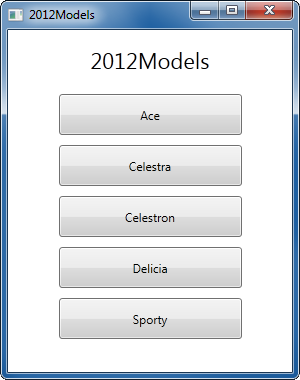
Figure 2-4. The watch test environment.
To test a watch
model, click its button in the Watch Launcher to open its test environment, as
shown for Ace in
Figure 2-5. In the watch
test environment you can test the watch as it would appear in real life by
pressing the buttons and observing the behavior of the times and icons on the
display. The current application is shown at the top of the gray display area,
and the current state is shown lower down on the page for debugging
purposes.
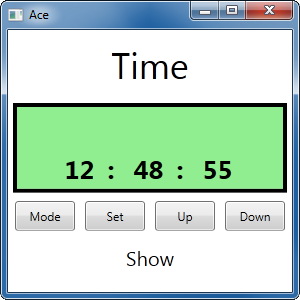
Figure 2-5. The test environment for a watch model.
It is
also possible to generate a test environment for just some selected watch
models. To do this, open the graph properties dialog for the
‘2012Models’ WatchFamily diagram and add the desired watch models
into the Models selected for generation list by selecting Add
Existing... from the list pop-up menu and choosing the appropriate watch
models from the dialog that opens. When the models have been added to the list,
run the ‘Autobuild’ generator as explained previously.
Along with the code for the Watch test environment it is
also possible to generate the model documentation directly from the Watch
models. To try this feature out, run the generator called ‘Watch family
documentation’. The output will be shown in your web browser with
clickable pictures and
links.


