2 Logging into MetaEdit+
MetaEdit+ is a repository-based application and therefore a
connection with the repository must be established during the start-up. When
started, MetaEdit+ opens a Startup Launcher as shown in
Figure 2-1.
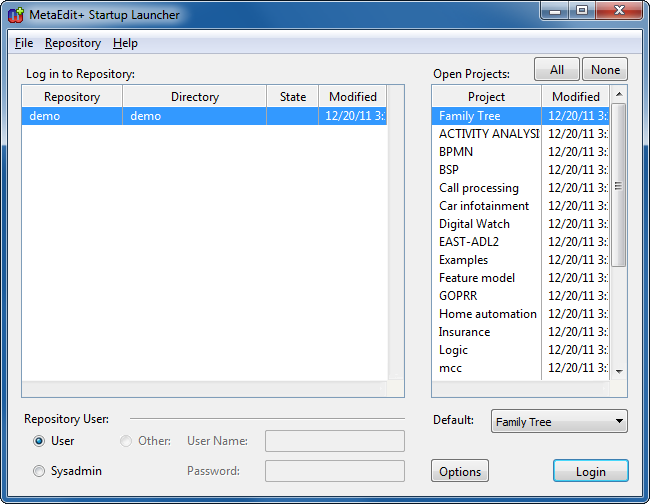
Figure 2-1. Startup Launcher.
Make sure that the
‘demo’ repository is selected from the
Log in to Repository
list and ‘User’ is selected as
Repository User. Select
‘Family Tree’ from the
Open Projects list (as in
Figure 2-1) and press
Login. If you are
using an evaluation version of MetaEdit+ and this is your first login, a dialog
will open for entering your evaluation license code. Enter the evaluation
license code exactly as given in the evaluation instructions and press
OK.
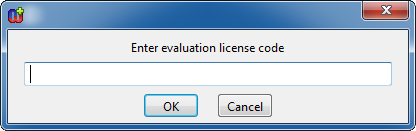
Figure 2-2. Evaluation license code dialog.
After a
successful login the Startup Launcher will close and you should see the main
MetaEdit+ Launcher (
Figure 2-3).
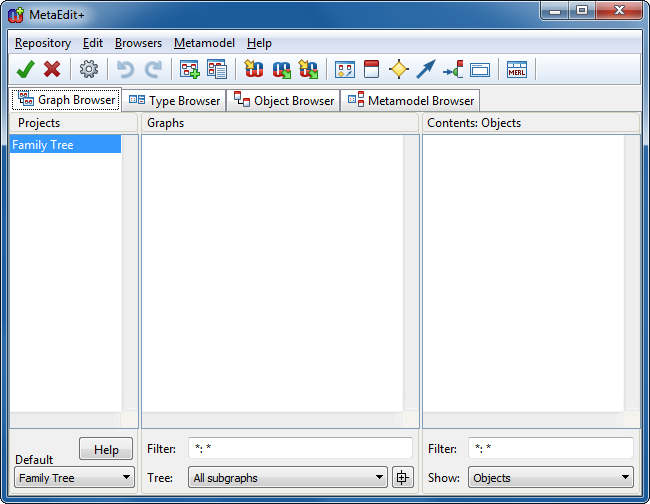
Figure 2-3. MetaEdit+ Launcher.
MetaEdit+ is now ready to
be used. If you want to quit MetaEdit+ before completing this tutorial, please
see Section
3.12 for exit
instructions.


