3.1 Creating objects
The most obvious of the GOPPRR metatypes is
object. The
main elements of a diagram in your modeling language will generally be
objects. In our case, our domain concept of
Person falls
into this category. Start the Object Tool (as shown in
Figure 3-1) by pressing
Object Tool
toolbar button or selecting
Metamodel | Object Tool in the MetaEdit+
launcher.

Figure 3-1. Object Tool.
Start creating the Person
type by typing its name (i.e. ‘Person’) into the text field at the
top of the Object Tool. Also make sure that the project for your object is
‘Family Tree’ (if not, you can change it by selecting Object |
Set Default Project... and choosing ‘Family Tree’ from the list
that appears).
Next, we need to state what information can be stored for
each
Person.
In GOPPRR each slot for storing information is called
a
property. To add a property to our Person object, move the mouse
over the area of the
Properties list in the Object Tool and press the
right mouse button. From the pop-up menu that opens, select
Add
Property... to add a property. As there are no property types defined yet,
MetaEdit+ automatically chooses to create a new property type (if there are
already some types, you must choose ‘New Property Type’ from the
dialog that opens). This opens a Property Tool for defining a new property type
(shown in
Figure 3-2).
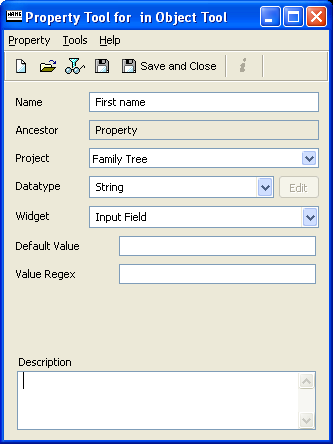
Figure 3-2. Property Tool.
In the Property Tool, enter the
name for the property (‘First name’). The other values are correct
by default in this case, so you can proceed by pressing the
Save button
in the toolbar. As this is the first time you have generated a type in this
session, MetaEdit+ will run a check on all types in the database. As there are
many types in the demo repository, this will take several seconds – but
only for this first time. If you see a dialog asking “Do you really want
to add the property First name to Person?’, press
Yes to accept the
addition and accept ‘First name’ as local name in the following
dialog. Close the Property Tool if it did not close automatically (it depends on
your settings) and go back to the Object Tool. You see now how the created
property appears in the
Properties list of the
Person object (as
shown in
Figure 3-3).

Figure 3-3. Object Tool with the 'First name' property.
Next
we will create the ‘Family name’ property. In the Object Tool, again
move the mouse over the Properties list and press the right mouse button
to open the pop-up menu. Choose Add Property... from there, and select
‘New Property Type’. In the Property Tool, enter ‘Family
name’ in the Name field.
The Widget list in the Property Tool allows us to
select how users will enter values of this property. As there will be several
Persons with the same Family Name, it would be useful if the user could
select these previously entered values from a pull-down list, into which each
new name will be added. The widget for this is called an Editable List: choose
it from the possible widget types from the Widget list. Press Save
and close the Property Tool if it is not automatically closed.
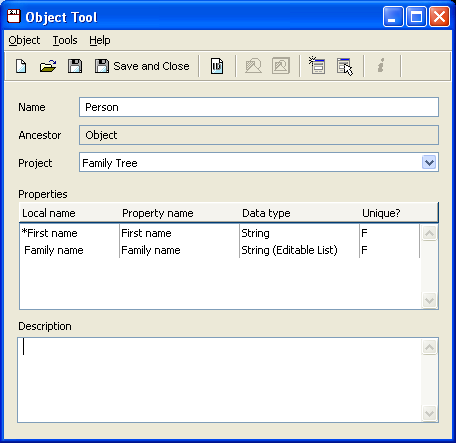
Figure 3-4. Object Tool with properties.
Your Object Tool
should now look like
Figure 3-4. Press
Save in the toolbar (answer ‘Yes’ if MetaEdit+ asks if a
default dialog for the new object should be generated). You have now completed
the definition of the
Person
concept.


