3.2.9 Connectable
A connectable is a special kind of symbol element that defines
an area around the symbol that the incoming role lines connect to. Normally
Connectables are not shown as part of the symbol in the editors, but in the
Diagram Editor they are shown briefly during the relationship creation, marking
the connection possibilities on the objects.
A connectable consists of two parts: a target point and an
optional connectable edge. The target point is the position at which the role
lines connecting to the symbol are aimed at. The target point is shown as a red
circle with a cross hair. The connectable edge is displayed as a red polyline
around the target point. Role lines stop where they intersect the connectable
edge. If no connectable edge is defined, the role lines stop at the target
point. Such point Connectables are mostly used in Relationship symbols that only
have text elements, as then all role lines meet in the middle of the
relationship.
Creating Connectables
There are two ways to create Connectables, one for a
connectable with an edge defining where roles stop, and one for a point
connectable with no edge.
To create a connectable with an edge:
| 1) | Press
the Connectable button in the
toolbar. |
| 2) | Define
the connectable edge. This is done in the same way as creating polyline
elements: click where you want to start the polyline, add breakpoints by
clicking at suitable positions, and complete the creation of the edge by
double-clicking the left mouse button. You will normally want to check
Closed from the Connectable’s pop-up menu. For more information
about drawing polylines, see Section 3.2.5. |
| 3) | When
the connectable edge has been completed, the target point for the connectable is
added automatically at the center of the area occupied by the edge
polyline. |
To create a point
connectable
, i.e. a connectable without an
edge:
| 1) | Press
the Point Connectable button in the
toolbar. |
| 2) | Click
in the desired position in the drawing area. The target point will appear at the
cursor position. |
Often Connectables must be
defined according to or around a certain symbol element. To do this, select the
element and choose Generate Connectable from its pop-up menu. This will
create a connectable with an edge that fits around the selected symbol element.
Finally, as each object or relationship symbol must have
at least one connectable, a default connectable is generated if no connectable
has been defined when symbol is saved.
Editing Connectables
Editing a connectable is also a little different from other
symbol elements. To select a connectable, you have to click the left mouse
button exactly on top of the target point. To move the target point and the
edge, first make sure that the connectable is not selected, then press and hold
down the left mouse button on top of the target point and drag the connectable
to the new location. If you want to move only the target point, select the
connectable first, then press and hold down the left mouse button on top of the
target point and drag the target point into the new position. The target point
moves, but the edge polyline remains in the original position. It is also
possible to move or resize the connectable by changing the settings on the
Location and Size tab in the Connectable’s Format Dialog.
For other editing purposes, Connectables follow the
behavior of polyline elements. You can make a connectable open or closed by
toggling the
Close menu item in its pop-up menu. To edit individual
breakpoints of the edge polyline, select
Edit Points from the pop-up
menu. For more information about these commands, see Section
3.2.5.
Target points
The target point of the default connectable is used as the
center of objects or relationships when positioning them in a Diagram Editor.
For instance, when an object is aligned to a grid, the target point of the
default connectable is placed on a grid point. Similarly, when a relationship is
straightened, the target point of its connectable is placed at the intersection
of its role lines.
On the
Connectable tab (as shown in
Figure 3–14) in the Format Dialog
for Connectables, it is also possible to set two behavioral aspects of target
points. The first one is the
Sticky targetpoint setting, which controls
what happens when the mouse cursor is brought on top of the connectable during
the relationship creation in Symbol Editor.
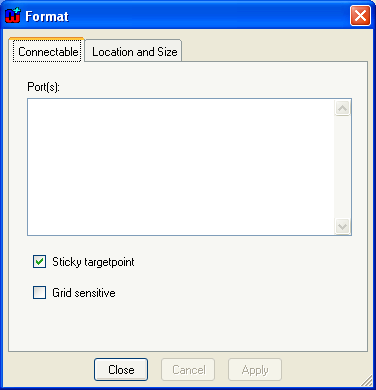
Figure 3–14. Connectable tab in Format Dialog.
 | With
a sticky target point (the default), the role line is locked immediately into
the target point and remains there as long as the cursor is on top of the
connectable. This is how most symbols work: after creation, the role always
points towards the original target point.
|
| A
non-sticky target point allows the end of the role line to move freely away from
the target point within the area of the connectable during creation, making it
possible to position it more freely. This is how the main object symbols work in
Sequence Diagrams: the roles are initially created pointing to where the user
clicked in the object, rather than the original target
point. |
| The
other aspect, Grid sensitive, defines whether or not the grid setting is
taken into account while connecting to a connectable with a non-sticky target
point. |


