2.6.3 Data types
In this section we discuss the data types available in
MetaEdit+ and how they appear to users in property dialogs. To set the data type
for a property, use the Datatype pull-down list in the Property Tool. If
you select a metatype (Graph..., Object..., Port..., Relationship... or Role...)
a dialog will prompt for selection of a particular type of that
metatype.
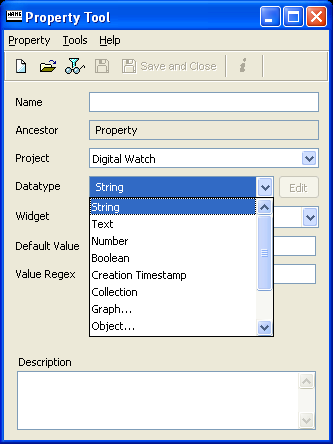
Figure 2–17. Data type selection.
String
The string data type is an ordinary character string without
any formatting. The initial default value is empty.
The
Widget pull-down list (
Figure 2–18) is used to select
among a list of possible widgets used in property dialogs for entering a string
value: Input Field, External Element, Editable List, Overridable List, Fixed
List, SOAP Fixed List and Radio Button Set.
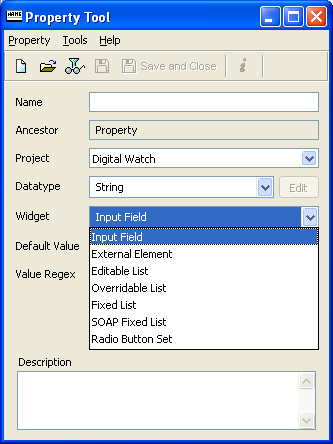
Figure 2–18. Widget selection.
The default selection
is Input Field, which is a single line box of approximately 30 characters by
default (it can be resized). The External Element widget type is used when the
string represents a file, resource or command in the operating system. The
widget used is identical to that for a normal Input Field, but its menu has an
extra
Execute item,
which sends the contents of the
property as a string to be run by the operating system. For example, in Windows
this can be a text file, a Word document, a URL (e.g.
http://www.metacase.com, or
mailto:info@metacase.com), or a command.
The menu also has a
Browse... item, to allow easy selection of a new
filename as the value.
The next four widgets all use pull-down lists, whose
initial set of values is defined in the property type. In a Fixed
List
the user can only select among the predefined values.
The SOAP Fixed List
is a special
case of a Fixed List, where the list values are retrieved from an external
source using SOAP calls. This requires the configuration of the SOAP server
connection and retrieval message. When the SOAP Fixed List widget is selected,
the Property Tool appears as in
Figure
2–19. Select the SOAP server and method from the pull-down
lists.

Figure 2–19. Property Tool with SOAP widget selected.
To
define a new SOAP server, press the
Edit button next to the SOAP Server
pull-down list. This will open a dialog for SOAP server
configuration
(
Figure 2–20). To define a new SOAP
server, enter its name and URLs for the WSDL file and the actual server (e.g.
file:///c:/myservices.wsdl and http://localhost/myservice). To finalize the
creation of the SOAP server definition, press the
Add button. The SOAP
server now appears in the list on the left. To edit an existing SOAP server
definition, select it from the list, edit its values on the right pane and press
the
Modify button to confirm the changes. It is also possible to view
those property types using a SOAP server definition by selecting it from the
list and pressing the
Info button. To remove a SOAP server definition,
select it from the list and press the
Remove button (remove is not
allowed if there are still property types associated with the selected SOAP
server definition).
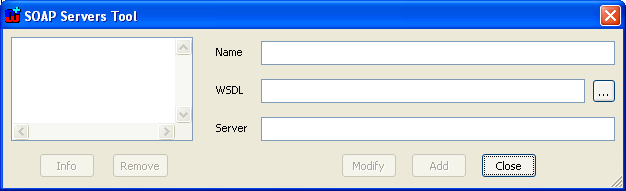
Figure 2–20. SOAP server configuration.
In an
Overridable List
the user can type a different value from
those in the list. In an Editable List
new values of the
property that are typed in the field will be added into the list. Note that the
Editable List’s list contents are based on the values entered into the
value list by metamodeler, but each project that uses this property type uses
its own copy of the list, and the new items that the modelers add will only
appear within that project. Use the
Reset Projects button next to the
value list to reset these per-project copied lists of Editable List
values.
For the list types a
Value list appears below the
widget list. The Value list
contains the predefined
values for this type. The list pop-up menu allows addition, removal and changing
the order of the values. Note that for Editable Lists, this value list is often
empty: the contents of the list are built up separately for each project. The
value list can also be edited conveniently in a text editor, one value per line,
by choosing
Edit as Text from its pop-up menu.
A Radio Button Set is a special case of a list widget. The
initial values are given in the Value list like other list-based widgets,
but they are presented as radio buttons in the property dialog.
Text
Text is used for longer descriptions. The text can contain
carriage returns, tabs etc., and also basic text formatting (fonts, bold, italic
etc.). The text widget
is shown as a multi-line text box
with a vertical scroll bar
. Text properties can also be
opened in a Text Editor, useful for text formatting or longer texts.
Number
Number can contain any integer, scientific or real number. The
widget
for number is a single line box with initial value
0.
Normally, it is better to use a String, since although a
property may initially appear to only contain numbers, it may later be found
useful to allow some strings too, e.g. to represent common constants. Input can
be restricted with the Value Regex field.
Boolean
A Boolean data type holds the value true or false. The
widget
for Boolean value is a check box: the initial
value is false.
Creation Timestamp
A creation timestamp stores the element creation time. The
value is stored as a UTC timestamp, and offset by the local timezone when
displaying. Its value cannot be changed, thus the widget
for timestamp is a read-only input field.
Collection
The Collection data type defines a list of strings or objects,
initially empty, in which the user can add and delete items. The
widget
for Collection is a list box with a vertical
scroll bar.
An example of a collection can be found from the Watch
example in type Display, which includes collections of Icons, UnitZones and
Buttons. Each of these has properties of their own and these properties could
again be collections themselves. MetaEdit+ does not limit the number of such
levels of complex properties.
Selecting the Collection data type adds an
Item
type pull-down list to the Property Tool window,
showing the data type of the members of this list. The list members can be
strings, graphs, objects, ports, roles or relationships. If you select a
metatype (i.e. anything other than String) a dialog will prompt for selection of
a particular type of that metatype. That type will then be shown in the
Item
type field.
When a type is chosen the list members can always be not
only of the type specified in the Item type field, but also of any type
which inherits from that type. In some exceptional circumstances it may be
desirable to specify the supertype of all the types of that metatype, e.g.
Object: you can do this by selecting the metatype from the Item type
pull-down list with shift held down, and that metatype will then be included in
the list of types to select from.
Graph, Object, Relationship,
Role
An individual graph, object, relationship or role can also be
used as the value of a property. In this section we discuss object types, but
the same applies for the other non-property types as well.
The Object data type allows you to specify a property
whose content will be an object of a selected type. When you select this data
type, the tool further asks you to specify the object type, which is the type of
the objects that can be attached to this field. Again, instances of subtypes of
this type are also allowed as values for this kind of property. In some
exceptional circumstances it may be desirable to specify the supertype of all
the types of that metatype, e.g. Object: you can do this by selecting the
metatype from the pull-down list with shift held down, and that metatype will
then be included in the list of types to select from.
The widget
for the Object data type
is similar to a String property’s Input Field, except that the background
is gray, showing that you cannot type directly there. The box shows the
identifier of the currently attached object. In place of the normal text editing
operations in the pop-up menu, there are operations for editing the attached
object, or opening its representation.
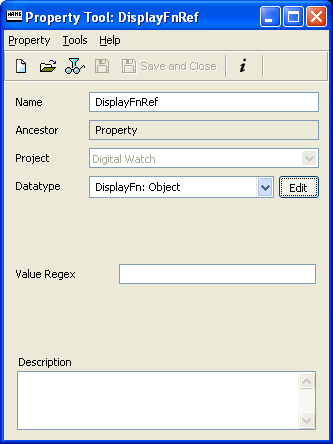
Figure 2–21. Property Tool with a DisplayFn object as the data type.
This
data type — containing other non-property instances — is a very
powerful tool for several purposes. It can be used for attaching whole objects
or graphs into one property of another object or graph type and thus allowing
complex data structures.


